
If your IPTV not working properly is ruining movie night or cutting out mid-match, you’re not alone. Buffering, frozen screens, app crashes, and “no signal” errors are the most common complaints among IPTV users, and the good news is that most of them come from a small handful of fixable causes. This guide walks through 15 proven fixes, starting with the fastest and most likely to solve the problem.
Before diving in, know this: IPTV performance depends heavily on your internet connection, your device, and the app or player you’re using — not just the service itself. Working through these fixes in order will help you isolate exactly where the problem lives.
Table of Contents
Quick Checklist Before You Start
Before troubleshooting anything complex, run through this fast checklist:
- Restart your router and streaming device
- Confirm your internet is actually online (try a browser or another app)
- Check if the app or service has a known outage
- Make sure your app is updated to the latest version
- Confirm your subscription hasn’t expired
If none of these solve it, move on to the detailed fixes below.
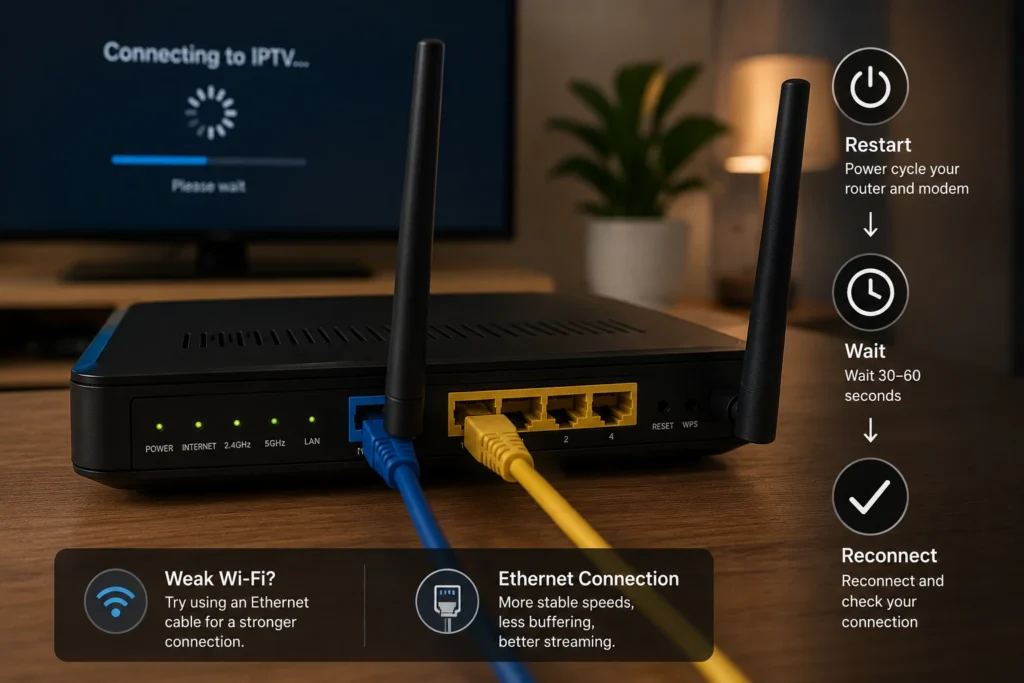
1. Restart Your Router and Modem
This sounds basic, but it resolves a surprising share of streaming issues. Routers accumulate memory strain and connection errors over time, especially with multiple devices connected.
How to do it properly:
- Unplug the router and modem from power
- Wait 30 full seconds
- Plug the modem back in first, wait for it to fully reconnect
- Plug the router back in
- Wait 2–3 minutes before reconnecting devices
A cold reboot clears temporary network errors that a simple device restart won’t fix.
2. Check Your Internet Speed
IPTV streams, especially in HD or 4K, need consistent, stable bandwidth — not just a high advertised speed. Run a speed test using a trusted tool like Ookla Speedtest to check your actual download speed and, just as importantly, your ping and jitter.
As a general reference point, the FCC’s broadband guidance outlines the minimum speeds recommended for different types of streaming, which is a useful baseline for comparing against your own results.
| Stream Quality | Recommended Minimum Speed |
|---|---|
| SD (Standard Definition) | 3–5 Mbps |
| HD (High Definition) | 10–15 Mbps |
| 4K Ultra HD | 25+ Mbps |
If your speed test results are noticeably below these numbers, your ISP connection — not the IPTV app — is likely the bottleneck.
3. Switch From Wi-Fi to Ethernet
Wireless connections are convenient but far more prone to interference, signal drop, and inconsistent speeds than a wired connection. If your streaming device supports an Ethernet port, connecting it directly to your router often eliminates buffering almost instantly.
If Ethernet isn’t possible, try moving your device closer to the router or reducing the number of walls/obstructions between them.
4. Reduce the Number of Connected Devices
IPTV requires sustained bandwidth. If multiple devices in your home are simultaneously downloading files, gaming online, or streaming in 4K, your available bandwidth for IPTV drops sharply.
Try this test:
- Pause downloads and other streams
- Disconnect devices you’re not using
- Reload your IPTV stream and see if performance improves
If it does, bandwidth congestion — not the app — was the culprit.
5. Restart the IPTV App or Player
Apps can develop cache buildup or minor software glitches over time. Fully closing and reopening the app (not just backgrounding it) often resolves freezing or loading errors.
On most smart TVs and streaming boxes:
- Open the app switcher/recent apps menu
- Fully close the IPTV app (don’t just press home)
- Wait 10 seconds
- Reopen the app and try the stream again
6. Update the App to the Latest Version
Outdated apps are one of the most overlooked causes of playback errors. Developers frequently patch bugs, fix codec compatibility, and improve stream handling in updates.
Check your device’s app store (Google Play, Amazon Appstore, or the relevant TV app store) for pending updates. If you’re using a third-party player like VLC or an IPTV player app, confirm you’re on the current release from the developer’s official page.
7. Clear App Cache and Data
A corrupted cache is a common cause of apps that load slowly, crash on launch, or fail to display channels correctly.
On Android-based devices:
- Go to Settings > Apps
- Select your IPTV app
- Tap Storage
- Select Clear Cache (try this first)
- If issues persist, select Clear Data (note: this may log you out)
8. Restart Your Streaming Device
Smart TVs, Fire TV Sticks, Android boxes, and similar devices can accumulate background processes that slow performance over time. A full restart clears temporary memory and refreshes system processes.
For Fire TV devices, Amazon’s own Fire TV troubleshooting support covers device-specific restart and reset steps. For Android TV and Google TV devices, Google’s official support offers similar guidance.
9. Check for Service Outages
Before assuming the problem is on your end, check whether your IPTV not working issue is actually a wider outage. Look for:
- Official status updates from your provider
- Community forums or social media mentions
- Any maintenance notices from your provider’s website
If it’s a known outage, no amount of troubleshooting on your end will fix it — you’ll simply need to wait it out.
10. Confirm Your Subscription Is Active
An expired or improperly renewed subscription is a common, easily missed cause of playback failure. Check your account dashboard or renewal email to confirm your plan is current and payment was successfully processed.
11. Change Your DNS Settings
Sometimes your default ISP-assigned DNS server is slow or unreliable, which can affect how quickly streams load. Switching to a public DNS provider like Cloudflare’s 1.1.1.1 or Google’s public DNS can improve resolution speed and reduce loading delays.
Basic steps:
- Go to your router or device network settings
- Locate the DNS configuration option
- Replace it with a public DNS provider’s addresses
- Save and restart your connection
12. Disable VPN (or Try a Different Server)
VPNs add an extra layer of encryption and routing that can reduce speed and increase latency. If you’re using a VPN, try disabling it temporarily to see if performance improves. If you need to keep it on for privacy reasons, switch to a server location closer to you.
13. Check Firewall and Router Security Settings
Overly aggressive router firewall settings or Quality of Service (QoS) rules can unintentionally throttle streaming traffic. Review your router’s admin panel for any QoS limits or app-blocking rules that might be affecting your IPTV app specifically.
14. Reinstall the App Completely
If updates and cache clearing haven’t worked, a full uninstall and reinstall often resolves deeper corruption issues that a simple cache clear can’t fix.
- Uninstall the app completely
- Restart your device
- Reinstall the app from the official app store
- Log back in and reconfigure settings
15. Contact Your Provider’s Support Team
If you’ve worked through every fix above and your IPTV not working problem persists, it’s time to contact your provider directly. Have this information ready:
- Your device type and model
- App version number
- A description of the error (freezing, black screen, error code, etc.)
- Results from your speed test
A detailed report speeds up diagnosis significantly compared to a vague “it’s not working” message.
Common IPTV Error Symptoms and Likely Causes
| Symptom | Most Likely Cause |
|---|---|
| Constant buffering | Insufficient bandwidth or Wi-Fi interference |
| App crashes on launch | Corrupted cache or outdated app version |
| Black screen with audio | Codec or player compatibility issue |
| “No signal” or connection error | Provider outage or expired subscription |
| Slow channel loading | DNS delay or router congestion |
When the Problem Isn’t on Your End
It’s worth remembering that streaming quality depends on a chain of factors: your ISP, your home network, your device, the app, and the provider’s own servers. A weak link anywhere in that chain can cause the same symptoms, which is why systematic troubleshooting — starting with the network and working outward — is far more effective than guessing.
If you regularly experience an IPTV not working issue during peak evening hours specifically, that pattern often points to ISP congestion rather than a device or app problem, since many households stream simultaneously at that time.
Final Thoughts
Most IPTV playback issues come down to network stability, outdated apps, or device performance rather than anything more serious. Working through these 15 fixes in order — starting with your router, internet speed, and app cache — resolves the vast majority of cases. If your IPTV not working problem continues after trying every step here, reaching out to your provider’s support team with detailed diagnostic information is the fastest path to a permanent fix.
Frequently Asked Questions
Why does my IPTV keep buffering even with fast internet?
Fast download speed alone doesn’t guarantee smooth streaming. Jitter, packet loss, and network congestion from other connected devices can cause buffering even on a high-speed connection.
Why did my IPTV app suddenly stop working?
Sudden failures are often caused by an app update issue, a corrupted cache, an expired subscription, or a temporary outage on the provider’s end. Checking for updates and clearing cache resolves most sudden issues.
Is Wi-Fi or Ethernet better for IPTV streaming?
Ethernet is generally more reliable for IPTV because it avoids the interference and signal drop-off that wireless connections can experience, especially in homes with multiple Wi-Fi networks nearby.
How much internet speed do I need for 4K IPTV streaming?
A stable connection of at least 25 Mbps is generally recommended for smooth 4K streaming, though actual requirements can vary depending on the stream’s bitrate.
Can a VPN cause IPTV streaming issues?
Yes. VPNs add encryption overhead and route traffic through additional servers, which can increase latency and reduce speed, particularly if the VPN server is geographically distant.
Should I clear cache or fully reinstall my IPTV app?
Start with clearing the cache, since it’s less disruptive. If problems continue, a full reinstall resolves deeper issues that cache clearing alone can’t fix.
How do I know if my IPTV provider is having an outage?
Check the provider’s official status page or social media channels, and look for community reports confirming widespread issues rather than a problem isolated to your setup.
Why does my IPTV work on Wi-Fi but not on mobile data, or vice versa?
This usually points to a difference in available bandwidth, network restrictions, or carrier-level throttling between the two connection types.