
Getting IPTV on Apple TV running smoothly comes down to installing a properly licensed app through the App Store and making sure your network and display settings are configured correctly. This guide walks through the full process on Apple’s tvOS platform, from software updates to final playback testing.
Apple TV devices run tvOS, Apple’s dedicated operating system for the Apple TV HD and Apple TV 4K set-top boxes. Because it’s a closed ecosystem tied to your Apple ID, setup is generally consistent and well-supported across app updates.
Table of Contents
What You’ll Need
- An Apple TV device connected to the internet
- An Apple ID signed in on the device
- An active subscription to a licensed live TV app, or a free ad-supported option
- Router access, in case network troubleshooting is needed
This guide covers only legal, officially licensed IPTV apps available through the Apple TV App Store. It does not cover unauthorized playlists, shared login credentials, or unlicensed streaming sources, which carry real security and legal risks.
Step 1: Update Your Apple TV Software
An outdated tvOS version can cause app installation failures or playback bugs already fixed in newer releases.
- Go to Settings > System
- Select Software Updates > Update Software
- Install any available update and restart the device if prompted
Apple regularly ships tvOS updates that improve app stability and add support for newer streaming features.
Step 2: Find a Licensed IPTV App in the App Store
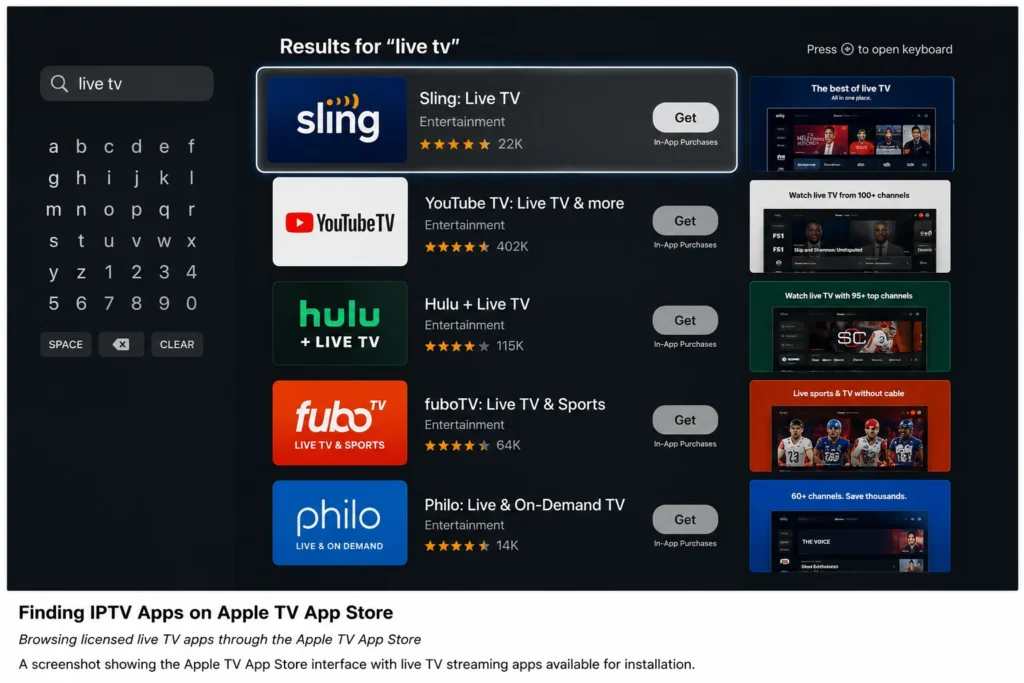
Open the App Store from the Apple TV home screen and search for a legitimate live TV provider. Commonly available licensed options include:
- YouTube TV — large channel bundle with unlimited cloud DVR
- Sling TV — customizable, à la carte channel packages
- Hulu + Live TV — live channels combined with on-demand content
- Philo — budget-friendly entertainment lineup
- Pluto TV — free, ad-supported live channels
Most major live TV services maintain dedicated Apple TV apps, since tvOS has a large, established user base.
Step 3: Install the App
- Highlight the app in your search results
- Select Get (or the price/subscribe button for paid apps)
- Authenticate with your Apple ID if prompted
- Once installed, the app icon appears on your home screen
Apps installed through the App Store update automatically by default, which keeps the channel guide and features current with no manual effort required.
Step 4: Sign In and Set Up Your Profile
Log in with your existing subscription credentials, or start a new sign-up if the app supports it directly. Many apps also support Single Sign-On through your TV or streaming provider account for faster setup. During onboarding, most apps ask you to:
- Enter your ZIP code for local channel availability
- Create separate profiles for household members
- Build a favorites list for quicker channel browsing
Taking a few minutes here makes day-to-day use noticeably smoother.
Step 5: Optimize Your Network Connection
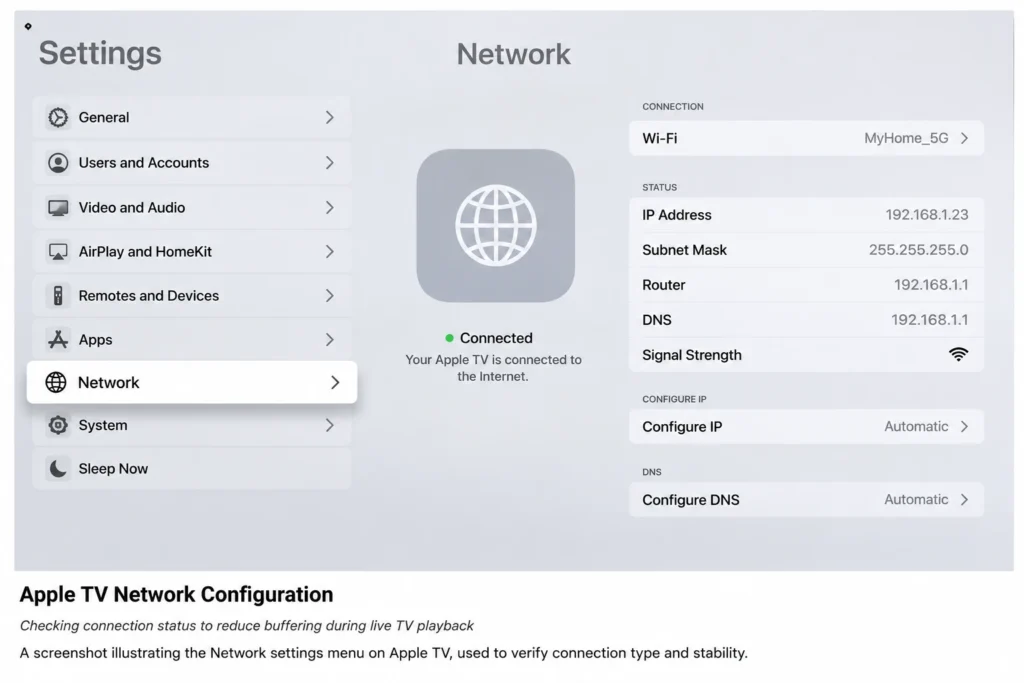
A weak or unstable connection is the leading cause of buffering. Under Settings > Network:
- Use a wired Ethernet connection if your Apple TV model has a LAN port (Apple TV 4K supports this) — it’s typically more stable than Wi-Fi, especially for 4K streams
- If using Wi-Fi, keep the device within strong range of your router, or add a mesh extender for larger homes
- Check your connection status in the Network settings menu to confirm it meets the app’s minimum requirement
| Content Type | Minimum Recommended Speed |
|---|---|
| SD live TV | 3–5 Mbps |
| HD live TV | 10–25 Mbps |
| 4K live TV | 25+ Mbps |
Step 6: Adjust Display and Audio Settings
Mismatched display or audio settings can cause a black screen, flickering, or sync issues during live playback. Under Settings > Video and Audio:
- Confirm the resolution and frame rate match your TV’s capabilities, or leave Match Content enabled so Apple TV adjusts automatically
- Enable HDR only when both your TV and the specific content support it, since forcing it on unsupported displays can cause a dim or washed-out picture
- Set audio output to match your setup — TV speakers, a soundbar via ARC/eARC, AirPlay, or a full surround receiver
Step 7: Test Playback and Fine-Tune
With everything configured, test a handful of channels, including a live sports or news stream, since these tend to be the most bandwidth-demanding. If problems appear:
- Restart the app, then the Apple TV if that doesn’t help
- Manually lower stream quality within the app, if that option is available
- Recheck your network connection status to rule out a connectivity dip
- Check the provider’s official support page for known service issues
Common Apple TV IPTV Issues and Fixes
| Issue | Likely Cause | Fix |
|---|---|---|
| App won’t install | Outdated tvOS software | Run Software Update before reinstalling |
| Frequent buffering | Weak Wi-Fi signal | Switch to Ethernet or move closer to router |
| No sound through soundbar | ARC/eARC misconfiguration | Check HDMI-CEC and audio output settings |
| App freezes on launch | Corrupted app cache | Delete and reinstall the app from the App Store |
| Black or flickering screen on 4K content | Resolution/HDR mismatch | Enable Match Content or manually match display settings |
Do You Need Another Streaming Device If You Have an Apple TV?
No. Apple TV already functions as a full streaming device on its own, and it supports the vast majority of major licensed live TV apps directly through the App Store. Since Apple controls both the hardware and tvOS software, app compatibility tends to be more consistent across models than on some competing platforms, so there’s rarely a need to add another box for live TV specifically.
Frequently Asked Questions
How do I get IPTV on Apple TV for the first time?
Update tvOS, open the App Store, search for a licensed live TV app, install it, and sign in with your subscription credentials. Then confirm your network speed meets the app’s requirements.
Do all Apple TV models support the same IPTV apps?
Mostly, yes. Both Apple TV HD and Apple TV 4K support the major licensed live TV apps, though 4K streaming quality requires the Apple TV 4K model along with a compatible subscription and internet speed.
Why does my Apple TV keep buffering during live TV streams?
Buffering is usually caused by insufficient internet speed, Wi-Fi interference, or network congestion from other connected devices. Switching to a wired Ethernet connection often resolves it.
Can I use Apple TV without an Apple ID for IPTV apps?
No, an Apple ID is required to download apps from the App Store, even free ones, though you can browse without necessarily storing payment information if using only free apps.
Is a VPN needed to use IPTV apps on Apple TV?
No, licensed streaming apps work normally without a VPN. It’s an optional privacy tool for general browsing, unrelated to app functionality.
Why is there no sound when I stream live TV through my soundbar?
This is usually an ARC/eARC or HDMI-CEC configuration issue. Confirm the correct HDMI port is used and that audio output matches your soundbar in the Video and Audio settings.
Does Apple TV support 4K IPTV streaming?
Yes, on the Apple TV 4K model, provided the app, your subscription tier, and your internet speed all support 4K playback.
What should I do if an IPTV app isn’t in my Apple TV App Store?
Availability can vary by region due to licensing agreements. Check the provider’s official website for supported devices and regional availability before assuming there’s a device issue.
Final Thoughts
Setting up IPTV on Apple TV follows a clear, repeatable pattern: update tvOS, install a licensed app through the App Store, configure your network and display settings, and test before troubleshooting further. Work through these seven steps, and most playback issues resolve before they ever start. From there, it’s simply a matter of choosing the licensed live TV service that fits your household’s viewing habits best.