
Setting up live TV streaming on Google TV is quick once you know the right order of steps. This Google TV IPTV guide walks through selecting a licensed app, installing it correctly, and configuring your network and display so channels play smoothly from day one.
Google TV is the interface layer found on devices like the Chromecast with Google TV and many current smart TVs from brands including Sony and TCL. It runs on the same underlying platform as Android TV but with a redesigned, content-focused home screen.
Table of Contents
What You’ll Need Before Starting
- A Google TV device set up with a Google account
- A stable home internet connection
- An active subscription to a licensed live TV app, or a free ad-supported option
- Router access, in case network adjustments are needed
This guide focuses exclusively on legal, officially licensed IPTV apps. It does not cover unauthorized playlists, shared credentials, or unlicensed content sources, which pose both security and legal risks.
Step 1: Update Your Google TV Software
Before installing any apps, confirm your device is current.
- Go to Settings > System > About
- Select System Update
- Install any pending updates and restart
An outdated build can cause installation failures or playback bugs that newer software versions have already resolved.
Step 2: Pick a Licensed IPTV App
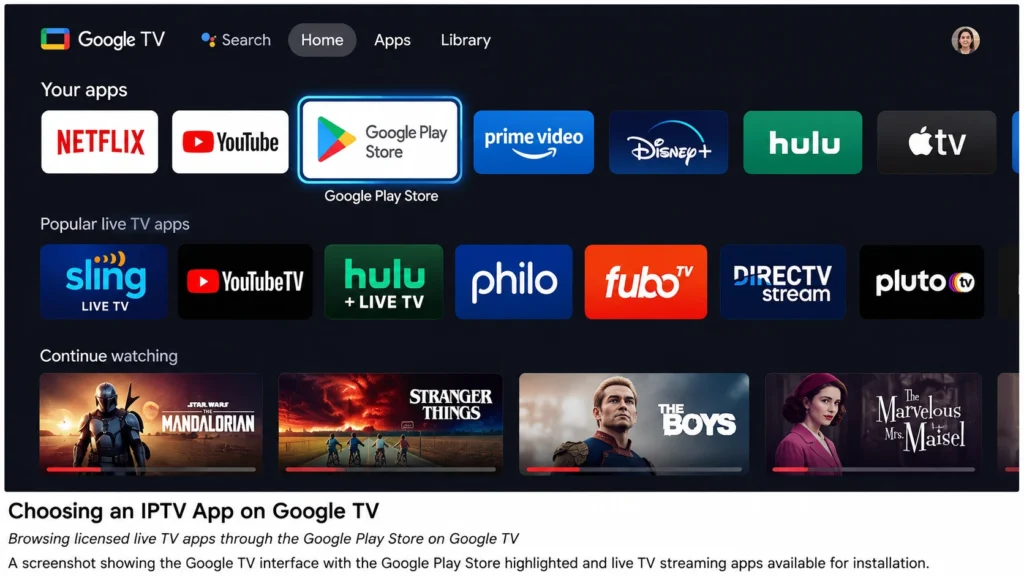
Open the Google Play Store directly from your Google TV home screen and search for a legitimate live TV provider. Well-established, licensed options include:
- YouTube TV — broad channel bundle with unlimited cloud DVR
- Sling TV — flexible, à la carte channel packages
- Hulu + Live TV — live channels plus a large on-demand library
- Philo — low-cost entertainment-focused lineup
- Pluto TV — free, ad-supported live channels, no subscription needed
Since Google TV shares its app ecosystem with Android TV, most major streaming apps are available and well-optimized for the platform.
Step 3: Install and Launch the App
- From the Google TV home screen, select the Apps icon or use voice search with the remote
- Search for the app by name
- Choose Install
- Once complete, open the app from the home screen or your apps library
Apps installed through the Play Store update automatically by default, which keeps bug fixes and guide improvements current without manual effort.
Step 4: Sign In and Set Up Your Profile
Log in with your existing subscription credentials, or begin a new sign-up if the app supports it. During setup, most apps ask you to:
- Enter a ZIP code to determine local channel availability
- Create separate profiles for different household members
- Build a favorites list for quicker channel access
Taking a few minutes here makes the day-to-day experience noticeably smoother.
Step 5: Configure Network Settings for Stable Streaming
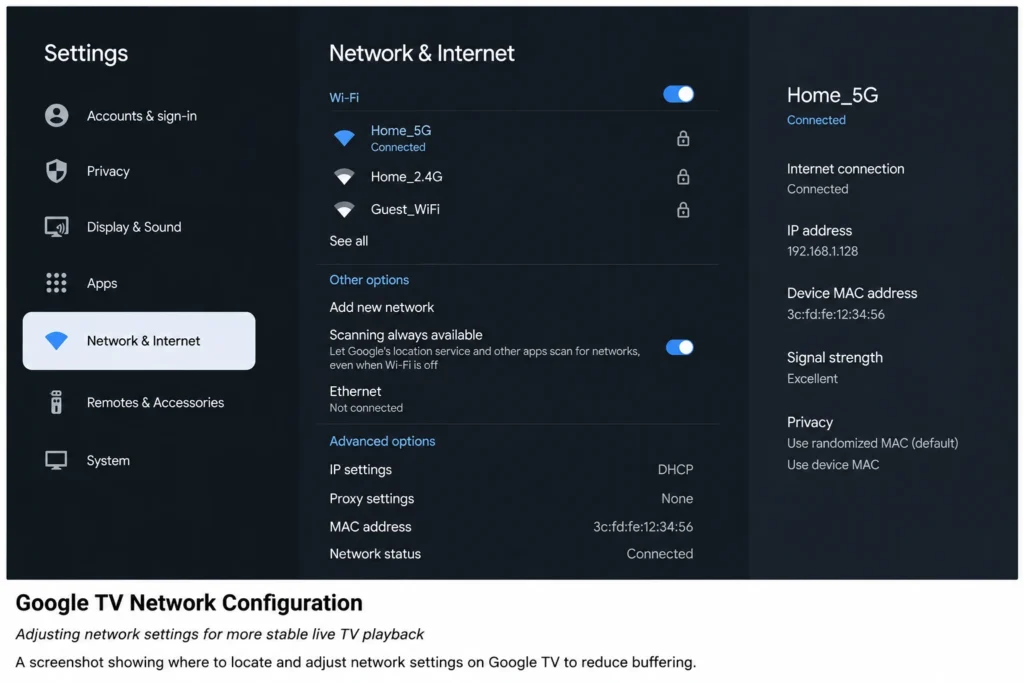
A poor connection is the most common cause of buffering. Under Settings > Network & Internet:
- Use a wired Ethernet adapter if your Google TV device supports one — this is especially helpful for 4K streams
- If relying on Wi-Fi, keep the device within strong signal range of your router, or add a mesh extender for larger homes
- Run a speed test to confirm your connection meets the app’s minimum requirement
| Content Type | Minimum Recommended Speed |
|---|---|
| SD live TV | 3–5 Mbps |
| HD live TV | 10–25 Mbps |
| 4K live TV | 25+ Mbps |
Step 6: Set Display and Audio to Match Your TV
Incorrect display or audio settings can cause black screens, flickering, or missing sound. Under Settings > Display & Sound:
- Match resolution output to your TV’s native capability (1080p or 4K)
- Enable HDR only when both your TV and the specific content support it
- Set the audio output format (stereo, 5.1 surround, or passthrough) to match your speaker or receiver setup
Step 7: Test Playback and Adjust as Needed
Once configured, test a few channels, including at least one demanding live sports or news stream. If issues appear:
- Restart the app, then the device if that doesn’t help
- Lower stream quality manually within the app, if that option exists
- Re-check your network speed to rule out a connectivity dip
- Review the provider’s official support page for known service issues
Common Google TV IPTV Issues and Fixes
| Issue | Likely Cause | Fix |
|---|---|---|
| App won’t install | Outdated system software | Run System Update before reinstalling |
| Frequent buffering | Weak Wi-Fi signal | Switch to Ethernet or move closer to router |
| No sound | Audio format mismatch | Adjust output format in Display & Sound settings |
| App freezes or crashes | Low storage or too many background apps | Clear storage and disable unused background apps |
| Blurry or black 4K picture | Resolution/HDR mismatch | Match display settings to TV capability |
Google TV vs. Android TV for IPTV: What’s the Difference?
Since Google TV runs on top of the Android TV operating system, the app installation and troubleshooting process covered in this guide applies almost identically to both. The main differences are cosmetic — Google TV’s home screen emphasizes content recommendations across your installed apps, while Android TV’s traditional interface is more app-grid focused. Live TV apps function the same way on either platform.
Frequently Asked Questions
What is the best way to follow this Google TV IPTV guide for a first-time setup?
Start by updating your device software, then install a licensed app from the Google Play Store, sign in with valid credentials, and confirm your network meets the recommended speed for your desired video quality.
Do I need Ethernet for Google TV IPTV streaming?
It’s not mandatory, but a wired connection is recommended for more consistent playback, particularly with 4K content or multiple devices streaming simultaneously on the same network.
Why does my Google TV IPTV app keep buffering?
Buffering most often comes from insufficient internet speed, Wi-Fi interference, or network congestion from other connected devices. Running a speed test and switching to Ethernet typically fixes it.
Can I use one IPTV subscription across multiple Google TV devices?
This depends on the provider’s terms of service. Most apps cap the number of simultaneous streams or registered devices per account, so check your specific plan’s limits.
Is a VPN required to use IPTV apps on Google TV?
No. Licensed streaming apps don’t require a VPN to function. Some users choose one for general privacy reasons, but it’s unrelated to app functionality.
How much storage do IPTV apps use on Google TV?
Most live TV apps are relatively lightweight, typically under 200MB, though having free storage overall helps with caching and general device responsiveness.
Does Google TV support 4K for IPTV streaming?
Yes, provided your specific device, the app, your subscription tier, and your internet connection all support 4K playback.
What should I do if an IPTV app isn’t available in my Google Play Store region?
App availability can vary by country due to licensing agreements. Check the provider’s official website for current regional availability before assuming there’s a device issue.
Final Thoughts
This Google TV IPTV guide boils down to a simple sequence: keep your software updated, install apps only through the official Google Play Store, configure your network and display to match your setup, and test before assuming something’s broken. Work through these seven steps in order, and most common playback problems are resolved before they even start. From there, it’s just a matter of picking the licensed live TV service that fits your household best.