
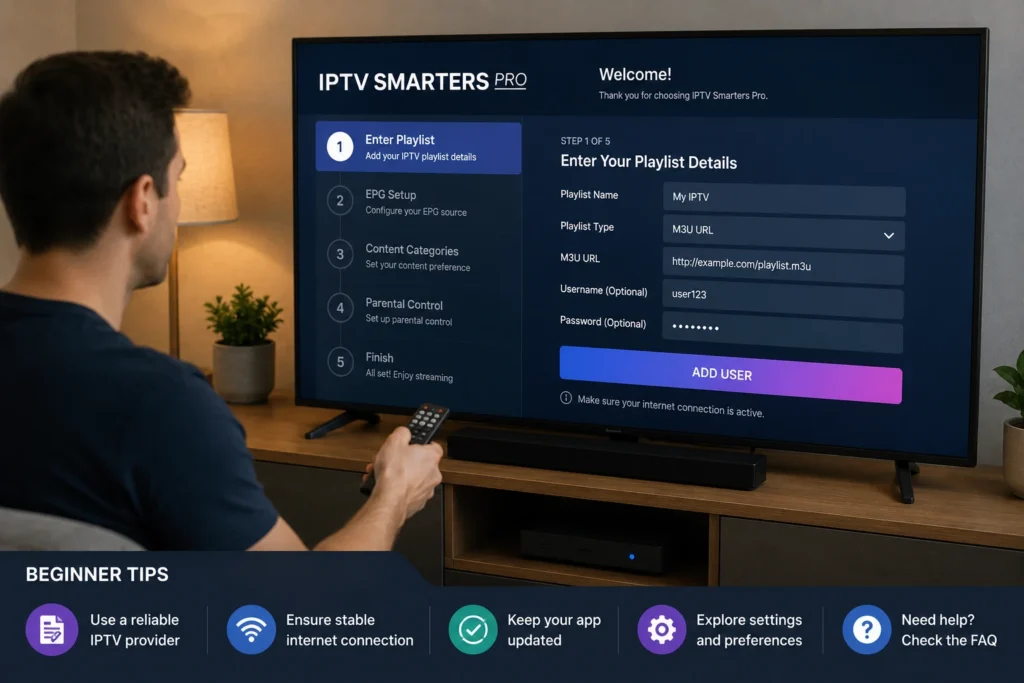
New to streaming and not sure where to start? These IPTV tips for beginners cover everything from choosing the right device and setting up your network to protecting your account and getting the smoothest possible playback. Whether you’ve just signed up for a service or you’re still researching, working through these 25 tips will save you hours of trial and error.
Let’s break them down by category, starting with the basics you should sort out before you watch a single minute of content.
Table of Contents
Getting Started: Tips 1–5
Getting the fundamentals right from day one makes every other IPTV tip on this list easier to apply.
1. Choose a licensed, reputable provider. Not all services are created equal. Stick with properly licensed providers that are transparent about the content they’re authorized to distribute. [INTERNAL LINK: how to choose a reliable IPTV service]
2. Confirm device compatibility before you subscribe. Check that your smart TV, streaming box, phone, or tablet actually supports the app or platform you’re considering. [INTERNAL LINK: IPTV device compatibility guide]
3. Test your internet speed first. Run a quick check with a tool like Speedtest by Ookla before you commit to a plan, so you know your connection can actually handle streaming.
4. Understand the Electronic Program Guide (EPG). The EPG is your channel listing and schedule. Learning to navigate it early makes finding content far faster.
5. Read the terms of service. Know what you’re agreeing to, including cancellation policies, supported devices, and simultaneous stream limits.
Setup & Network Tips: Tips 6–10
A few of these IPTV tips for beginners focus purely on your home network, since that’s where most early problems come from.
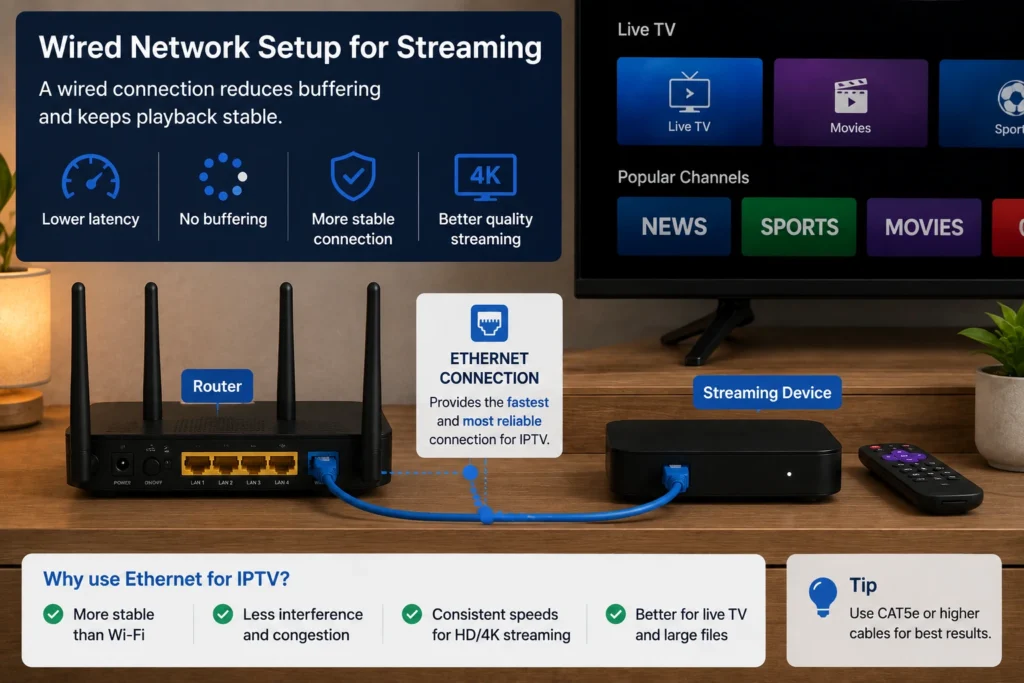
6. Use Ethernet over Wi-Fi when possible. A wired connection is more stable and reduces the chance of buffering, especially for HD or 4K content. [INTERNAL LINK: how to fix IPTV buffering guide]
7. Position your router centrally. Keep your router away from thick walls, metal objects, and other electronics that can weaken the signal.
8. Know your recommended speeds. Use the table below as a baseline for the resolution you plan to watch most often.
| Streaming Quality | Minimum Recommended Speed |
|---|---|
| SD | 3 Mbps |
| HD (720p–1080p) | 5–10 Mbps |
| Full HD, multiple devices | 15–20 Mbps |
| 4K Ultra HD | 25 Mbps+ per stream |
These baseline figures are consistent with general guidance from the FCC’s broadband speed guide.
9. Restart your router regularly. A weekly reboot clears temporary memory issues that can otherwise cause slowdowns.
10. Consider a mesh Wi-Fi system for larger homes. If your router is far from your TV, a mesh system can eliminate dead zones far more effectively than a single router alone. Look for equipment certified by the Wi-Fi Alliance.
App & Device Tips: Tips 11–15
11. Keep your app and firmware updated. Developers regularly patch bugs and improve streaming efficiency, so check for updates often.
12. Learn your remote’s shortcuts. Most streaming devices have shortcut buttons for search, voice control, or quick settings — learning them speeds up daily use.
13. Set up favorites or a custom channel list. Most apps let you star or reorder channels, which makes navigation far quicker once you know your regular lineup.
14. Use separate profiles if your household shares an account. This keeps recommendations and watch history relevant to each viewer.
15. Familiarize yourself with playback controls. Know how to pause, rewind, and adjust settings mid-stream so you’re not fumbling during live content.
Streaming Quality Tips: Tips 16–20
16. Match resolution to your actual bandwidth. Streaming in 4K on a connection that can’t support it causes constant buffering. Step down the resolution if playback isn’t smooth. [INTERNAL LINK: how to fix IPTV buffering guide]
17. Close background apps and idle devices. Every connected device competes for bandwidth, so shut down what you’re not using while streaming.
18. Test at different times of day. If buffering only happens in the evening, it’s often a sign of network congestion during peak hours rather than a problem with your setup.
19. Check your DNS settings if load times are slow. Switching to a faster public DNS provider, such as Google Public DNS, can shorten the time it takes to start a stream.
20. Understand adaptive bitrate streaming. Many apps automatically adjust quality based on your connection strength — this is normal and usually preferable to constant buffering at a fixed resolution.
Safety & Legal Tips: Tips 21–25
21. Only use properly licensed, authorized services. Sticking to legitimate providers protects you legally and typically means more reliable, better-supported service.
22. Use strong, unique passwords for your streaming accounts. Reused passwords are one of the most common ways accounts get compromised.
23. Be wary of deals that seem too good to be true. Extremely cheap, unusually large channel bundles are a common red flag worth researching carefully before you pay. The Federal Trade Commission publishes general guidance on spotting subscription and streaming scams.
24. Protect your payment information. Use secure payment methods and avoid providers that only accept untraceable payment forms.
25. Know your local regulations. Streaming laws vary by country and region, so it’s worth understanding what’s permitted where you live before subscribing to any service. [INTERNAL LINK: IPTV legal guide by country]
Quick Reference: Beginner Priorities
| Priority | Tip Numbers | Why It Matters |
|---|---|---|
| Reliability | 1, 3, 6, 9 | Prevents most early technical problems |
| Ease of use | 4, 12, 13, 15 | Speeds up your daily viewing experience |
| Picture quality | 8, 16, 18, 20 | Keeps playback smooth at the right resolution |
| Safety | 21, 22, 23, 24, 25 | Protects your account, payments, and legal standing |
Frequently Asked Questions
What is the most important IPTV tip for beginners?
Choosing a licensed, reputable provider matters most — it affects reliability, support quality, and legal standing all at once.
Do I need a fast internet connection for IPTV?
Yes. At minimum, 5–10 Mbps is recommended for HD content, and 25 Mbps or more per stream for 4K.
Is Wi-Fi good enough for IPTV, or do I need Ethernet?
Wi-Fi can work fine for SD or HD content on a strong connection, but Ethernet is more stable and recommended for 4K or multi-device households.
How do I know if an IPTV provider is legitimate?
Look for transparency about licensing, clear terms of service, verifiable customer support, and pricing that’s realistic for the content offered.
What should I do if my IPTV keeps buffering?
Start with a speed test, try a wired connection, restart your router, and lower the stream resolution if needed. [INTERNAL LINK: complete IPTV buffering fix guide]
Can I use IPTV on multiple devices at once?
This depends on your provider’s plan and simultaneous stream limits — check your terms of service before assuming multi-device use is included.
Do I need a VPN for IPTV?
Not necessarily. Some users choose one for general privacy, but a VPN isn’t required to use a licensed IPTV service and can occasionally add latency.
How often should I update my IPTV app?
Check for updates at least monthly, or whenever you notice performance issues, since updates often fix bugs affecting playback.
Final Thoughts
These IPTV tips for beginners cover the full picture — from your first setup decisions to the daily habits that keep streaming smooth and your account secure. Start with the basics (a licensed provider, a compatible device, and a solid connection), then work through the network and quality tips as you settle in. Following even half of this list will put you ahead of most first-time IPTV users.