

If your stream keeps freezing, you need to fix IPTV buffering by addressing its three most common causes: an unstable internet connection, an overloaded router or Wi-Fi signal, and outdated apps or hardware. This guide walks through nine proven, step-by-step fixes — from speed tests to DNS changes — so you can identify the exact cause and get back to smooth, uninterrupted streaming today.
Buffering is frustrating, but it’s rarely a mystery once you know what to check. Below, we’ll break down why it happens, how to diagnose it in minutes, and exactly what to do to fix it for good.
Table of Contents
What Causes IPTV Buffering?
Before you can fix IPTV buffering, it helps to understand what’s actually happening. Buffering occurs when your device can’t download video data fast enough to keep up with playback, so it pauses to “catch up.”
Common causes include:
- Slow or inconsistent internet speed — especially on connections shared by multiple devices
- Weak Wi-Fi signal — distance from the router, thick walls, or interference from other electronics
- Router congestion — too many devices competing for bandwidth at once
- Outdated apps or firmware — bugs and inefficient streaming protocols
- DNS server delays — slow domain resolution before the stream even starts
- VPN overhead — encryption and rerouted traffic can add latency
- Underpowered streaming devices — older boxes or smart TVs that struggle to decode high-bitrate video
- ISP throttling — some providers slow down high-bandwidth traffic during peak hours
Most buffering issues fall into one of these categories, which is why a systematic approach works better than randomly restarting things and hoping for the best.
Quick Checklist Before You Start
Run through this two-minute checklist first. It solves a surprising number of buffering issues on its own:
- Restart your router and streaming device
- Move closer to your Wi-Fi router, or switch to Ethernet
- Close unused apps and disconnect idle devices from the network
- Confirm no one else is downloading large files or gaming online
- Check that your streaming app is fully updated
If buffering continues after this checklist, move on to the detailed fixes below.
How to Fix IPTV Buffering: Step-by-Step Fixes
1. Test and Upgrade Your Internet Speed
Buffering almost always starts with bandwidth. Run a speed test using a trusted tool like Speedtest by Ookla to check your actual download speed against what your ISP promises.
For reference, most streaming services recommend a stable connection of at least 5 Mbps for HD video and 25 Mbps for 4K, according to Netflix’s own internet speed guidance. If your results fall well below your plan’s advertised speed, contact your ISP or consider upgrading your package.
2. Switch From Wi-Fi to Ethernet
Wireless signals are inherently less stable than a wired connection. If your streaming device supports it, connect it directly to your router with an Ethernet cable. This single change resolves a large share of buffering complaints, particularly for 4K content.
If Ethernet isn’t practical, a powerline adapter or a mesh Wi-Fi system can significantly improve signal consistency in rooms far from the router. [INTERNAL LINK: best IPTV routers and networking gear guide]
3. Restart Your Router and Streaming Device
It sounds basic, but routers accumulate memory bloat and temporary glitches over time. Power-cycle both your router/modem and your streaming device:
- Unplug the router and modem for 30 seconds
- Plug the modem back in and wait for it to fully reconnect
- Plug the router back in
- Restart your streaming device or app separately
This clears temporary network errors that often cause buffering.
4. Close Background Apps and Devices
Every connected device pulls from your total bandwidth. Smart TVs running background updates, phones auto-backing up photos, or other household members streaming simultaneously can all starve your IPTV app of bandwidth.
- Pause downloads and cloud backups while streaming
- Disconnect devices you’re not actively using
- Ask other users on the network to avoid heavy downloads during your viewing time
5. Change Your DNS Server
Slow DNS resolution can delay the initial connection and occasionally cause mid-stream interruptions. Switching to a faster, more reliable public DNS server — such as Google Public DNS — is free and takes just a few minutes on most routers or devices.
6. Disable VPN or Switch Servers
VPNs add a layer of encryption and often route traffic through a distant server, both of which can introduce latency. If you use a VPN for privacy while streaming:
- Try disabling it temporarily to see if buffering improves
- If you need it active, switch to a server that’s physically closer to you
- Choose a VPN provider optimized for streaming speed rather than one prioritizing maximum encryption strength
[INTERNAL LINK: best VPNs for streaming compared]
7. Update Your IPTV App and Firmware
Outdated software is a frequent, overlooked cause of buffering. Developers regularly patch streaming inefficiencies and compatibility issues, so check for updates on:
- The IPTV app itself
- Your streaming device’s operating system (Android TV, Fire OS, tvOS, etc.)
- Your router’s firmware
Most devices have an “About” or “System Update” menu where you can check manually. [INTERNAL LINK: IPTV device compatibility and setup guide]
8. Adjust Video Quality or Bitrate Settings
If your connection can’t consistently handle the highest resolution offered, manually lowering the stream quality reduces the bandwidth required and often eliminates buffering entirely. Many apps let you set this in the playback or quality settings menu — try stepping down from 4K to 1080p or from 1080p to 720p and see if playback stabilizes.
9. Use a Wired Ethernet Adapter or Mesh Wi-Fi System
For streaming boxes or smart TVs without a built-in Ethernet port, a USB-to-Ethernet adapter is an inexpensive fix that brings the stability of a wired connection to a device that otherwise relies on Wi-Fi. Alternatively, a mesh Wi-Fi system — which uses multiple access points instead of one central router — can eliminate dead zones that cause intermittent buffering in larger homes. The Wi-Fi Alliance offers general guidance on choosing compatible, certified equipment.
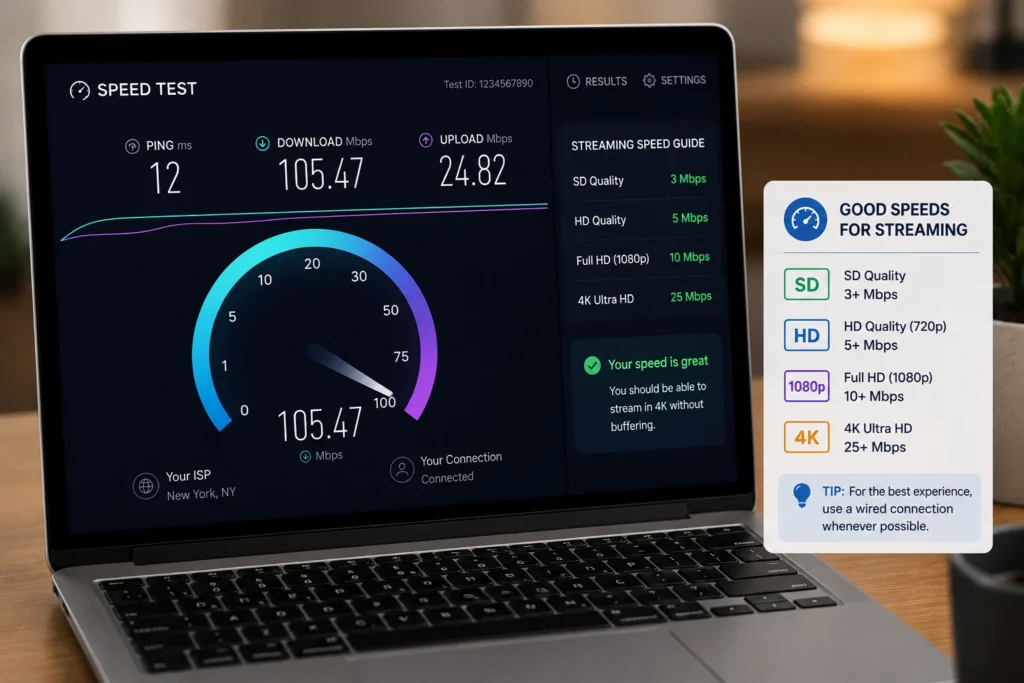
Recommended Internet Speeds for IPTV
Use this table as a baseline when troubleshooting or deciding whether to upgrade your plan:
| Streaming Quality | Minimum Recommended Speed | Notes |
|---|---|---|
| SD (Standard Definition) | 3 Mbps | Fine for single-device viewing |
| HD (720p–1080p) | 5–10 Mbps | Most common viewing quality |
| Full HD (1080p, multiple devices) | 15–20 Mbps | Needed if 2+ devices stream at once |
| 4K Ultra HD | 25 Mbps+ | Per stream; add more for multiple 4K streams |
These figures align with general guidance from the FCC’s broadband speed guide, which is a useful independent reference when evaluating whether your current plan is actually sufficient.
When Buffering Points to a Provider Problem, Not Your Setup
If you’ve worked through every fix above and buffering persists across multiple devices, networks, and times of day, the issue may sit with your streaming provider’s server infrastructure rather than your home setup. Signs this might be the case include:
- Buffering happens at the same time every day (often peak evening hours)
- Other streaming services and websites work perfectly fine on the same connection
- The problem affects specific channels or content, not everything you watch
In this scenario, reach out to your provider’s support team, or consider whether it’s time to evaluate other reputable, properly licensed options. [INTERNAL LINK: how to choose a reliable IPTV service]
How to Prevent IPTV Buffering in the Future
Once you fix IPTV buffering, a little maintenance keeps it from coming back:
- Restart your router weekly, or set it to reboot automatically overnight
- Keep apps and firmware updated
- Position your router centrally and away from thick walls or metal objects
- Periodically re-run a speed test to confirm your ISP is delivering promised speeds
- Avoid running large downloads or cloud syncs during peak streaming hours
[INTERNAL LINK: troubleshooting common IPTV playback errors]
Frequently Asked Questions
Why does my IPTV keep buffering even with fast internet?
Fast overall internet doesn’t guarantee stable throughput. Wi-Fi interference, router congestion, DNS delays, or an underpowered streaming device can all cause buffering even on a high-speed plan.
Does a VPN cause IPTV buffering?
It can. VPN encryption and server rerouting add processing overhead and distance, which sometimes slows playback. Testing with the VPN off is the fastest way to confirm whether it’s the cause.
How much internet speed do I need to fix IPTV buffering for 4K streams?
Most services recommend at least 25 Mbps per 4K stream. If multiple devices stream simultaneously, add roughly that amount per additional device.
Should I use Wi-Fi or Ethernet for IPTV?
Ethernet is more stable and is the better choice whenever it’s physically practical, especially for 4K or multi-device households.
Can changing DNS servers really fix IPTV buffering?
Yes, for some users. A slow or overloaded DNS server can delay the initial connection and, in some cases, contribute to mid-stream interruptions. Switching to a faster public DNS is a quick, low-risk fix to try.
Why does buffering only happen in the evening?
This pattern usually points to network congestion — either on your home network as more devices connect after work/school, or on your ISP’s or provider’s end during peak usage hours.
Do I need to restart my router every day?
Not necessarily every day, but a weekly restart clears temporary memory issues and is a simple habit that reduces buffering frequency for many households.
Can an old streaming device cause buffering?
Yes. Older boxes and smart TVs may lack the processing power to decode higher-bitrate streams smoothly, even when the internet connection itself is fine. Updating firmware helps, but very old hardware may need replacing.
Final Thoughts
Buffering is almost always solvable once you isolate the cause. Start with the quick checklist, then work through the internet, network, and device-level fixes in order — most people fix IPTV buffering within the first few steps. If problems persist across every device and network you try, the issue likely sits upstream with your provider, and it’s worth reaching out to them directly for support.