
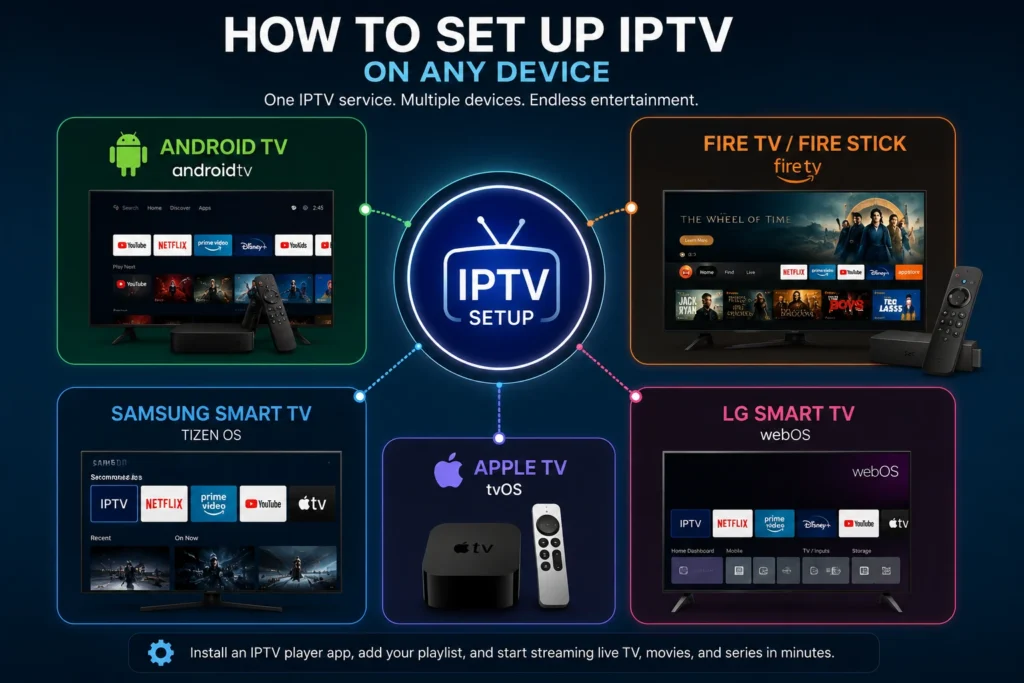
Learning how to set up IPTV comes down to two things: choosing a compatible player app for your device, and connecting it to a playlist source from a licensed provider. The exact steps vary by platform, but the underlying process is consistent across Android TV, Fire TV, Smart TVs, phones, tablets, and computers. This guide walks through each device type step by step, plus what to check before you start and how to troubleshoot common setup problems.
Before diving in, it’s worth being clear about what “setting up IPTV” actually involves: you’re installing a media player app, then entering connection details (typically an M3U playlist URL or Xtream Codes login) provided by your own IPTV subscription service. The app itself doesn’t include any channels — it’s simply the tool that organizes and plays back content from whatever source you connect it to.
Table of Contents
Choosing the Right Player App for Your Setup
Before you get into device-specific steps, it’s worth spending a few minutes picking the right player app, since this affects how smoothly the rest of your how to set up IPTV process goes. Most player apps fall into a few broad categories:
- General-purpose players that accept any standard M3U/M3U8 playlist or Xtream Codes login, giving you flexibility to switch providers later without changing apps
- Provider-branded apps built specifically for one service, which can be simpler to set up but lock you into that provider’s ecosystem
- Premium players with advanced features like multiple playlists, DVR recording, and multi-view, usually available as a one-time or annual paid upgrade
If you’re not sure which to choose, starting with a well-reviewed general-purpose player is usually the safer bet, since it keeps your options open if you ever switch providers.
What You Need Before You Start
- A compatible device — Android TV/Google TV, Fire TV, a Smart TV, iOS/Apple TV, or a computer
- A stable internet connection, ideally with speeds well above your provider’s minimum recommendation for smooth 4K or HD playback
- An active subscription with a licensed IPTV provider, which will supply your playlist connection details
- A player app compatible with your specific device and provider
Once you have these, the setup process is largely the same regardless of which app or device you’re using: install the app, open its “add playlist” or “add source” option, and enter your provider’s connection details.
How to Set Up IPTV on Android TV and Google TV
Android TV and Google TV devices offer the most flexibility for IPTV apps, since they support both official app store installs and, on select devices, sideloading.
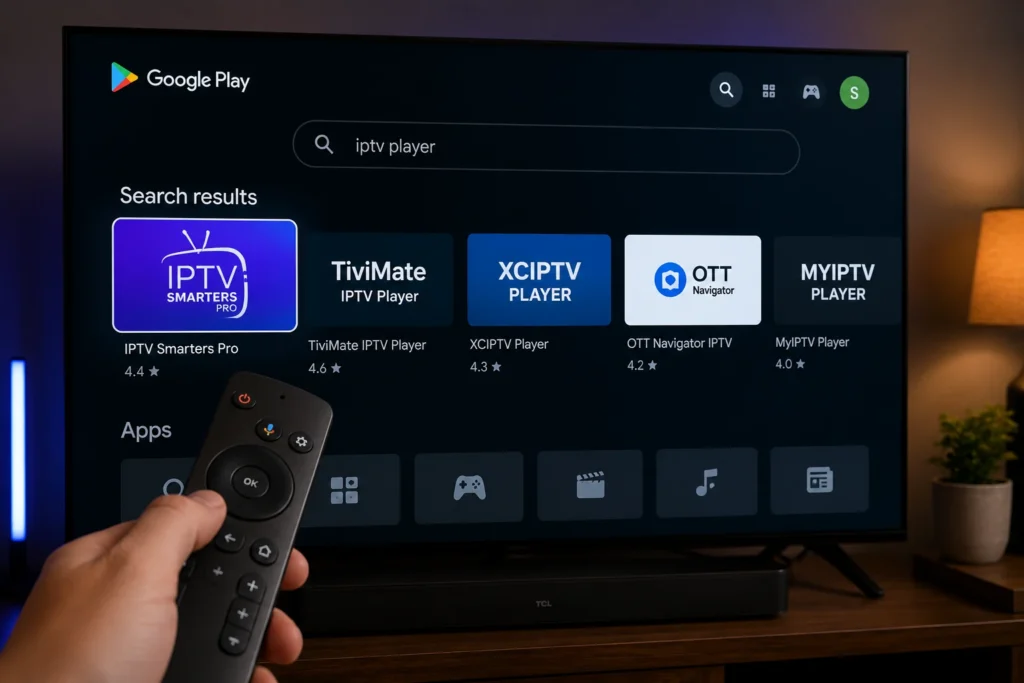
- Open the Google Play Store on your Android TV or Google TV device.
- Search for your chosen IPTV player app by name.
- Select Install and wait for the download to complete.
- Open the app and locate the option to add a playlist or account (often labeled “Add Playlist,” “Add User,” or similar).
- Enter the connection details provided by your IPTV subscription service.
- Allow the app to load your channel list and EPG data, which may take a few minutes on the first launch.
For a full technical overview of what Android TV supports, see the official Android TV developer documentation.
How to Set Up IPTV on Fire TV and Fire TV Stick
Most current Fire TV devices run a modified version of Android, which means many IPTV apps are available directly through the Amazon Appstore. Note that Amazon’s newest Fire TV Stick HD models run Vega OS instead, which currently does not support sideloading apps from outside the Amazon Appstore — so on those specific devices, you’re limited to whatever’s available in the official store.
- From the Fire TV home screen, go to Find > Search.
- Search for your chosen IPTV player app.
- Select Get or Download to install it.
- Open the app and enter your provider’s playlist details in the setup screen.
- If your specific app isn’t available in the Amazon Appstore and your device supports sideloading, you can install it manually using the Downloader app, available directly from the Amazon Appstore.
Sideloading is a standard, legitimate feature of Android-based devices used to install apps not listed in a specific store — it isn’t inherently risky, but only install app files from sources you trust, since sideloaded apps aren’t reviewed the way Appstore listings are.
How to Set Up IPTV on Samsung and LG Smart TVs
Samsung (Tizen) and LG (webOS) Smart TVs work differently from Android-based devices: they only officially support apps available through their own app stores, and neither platform officially supports sideloading external app files.
On a Samsung Smart TV:
- Press the Home button on your remote to open Smart Hub.
- Navigate to the Apps section and use the search icon to find your chosen app.
- Select the app, then choose Install.
- Open the app once installed and enter your provider’s playlist details.
Samsung’s own support documentation for this process is available at Samsung’s official app installation guide.
On an LG Smart TV:
- Press Home on your remote and select Apps.
- Use the search icon to find your chosen app by name.
- Select Install from the app’s detail screen.
- Once installed, select Launch, then enter your provider’s connection details.
LG’s official steps are documented at LG’s support guide for installing and deleting apps.
If your preferred IPTV app isn’t available on either platform’s official store, the more reliable workaround is usually connecting an external streaming device (like an Android TV box or Fire TV stick) to your Smart TV’s HDMI port, rather than attempting unsupported installation methods.
How to Set Up IPTV on iOS and Apple TV
Apple’s ecosystem is more restrictive by design, and app availability depends on your specific device generation.
- On Apple TV 4K or Apple TV HD, open the App Store app from the Home Screen.
- Search for your chosen IPTV player app.
- Select Get (for free apps) to download and install it.
- Open the app and enter your provider’s connection details.
Note that the App Store isn’t available on older Apple TV (3rd generation) models, which limits you to pre-installed apps only. Full details are available in Apple’s official guide to installing and deleting apps on Apple TV. On iPhone and iPad, the process is the same as installing any other app: search the App Store, tap Get, and configure your playlist once it opens.
How to Set Up IPTV on Windows and Mac
For a computer-based setup, a general-purpose media player like VLC media player can open playlist files directly, or you can install a dedicated IPTV player app if one is available for your operating system.
- Download and install your chosen IPTV player app or VLC from its official source.
- Open the app and locate the option to open a network stream or add a playlist.
- Enter your provider’s playlist URL or import the playlist file if your provider supplies one.
- Save the configuration so it loads automatically the next time you open the app.
Step-by-Step: Connecting Your Playlist Source
Regardless of device, the final setup step is the same across most apps:
- Open your installed IPTV app and locate Add Playlist, Add User, or Add Source.
- Choose the connection method your provider specified — typically an M3U/M3U8 URL or an Xtream Codes-style login (server address, username, and password).
- Enter the details exactly as provided, since even small typos will prevent the playlist from loading.
- Save the source and allow the app to sync your channel list and program guide data.
- Test playback on a few channels to confirm everything loaded correctly before considering setup complete.
Common Problems and How to Fix Them
| Problem | Likely Cause | Fix |
|---|---|---|
| App won’t install | Device incompatibility or insufficient storage | Check the app’s compatibility list for your device model, and free up storage if needed |
| Playlist won’t load | Incorrect URL or login details | Double-check for typos, extra spaces, or an expired subscription |
| Channels load but won’t play | Codec or format issue | Try an alternate player app, or check if your provider offers a different stream format |
| EPG shows no data | Provider-side EPG issue | Confirm the EPG URL is correct; contact your provider if the issue persists |
| Frequent buffering | Network bandwidth or Wi-Fi interference | Switch to a wired connection, or test speeds during peak hours |
| App not available on Smart TV store | Platform restriction | Use an external streaming device connected via HDMI instead |
Tips for a Smoother IPTV Setup
- Use a wired Ethernet connection for your primary viewing device whenever possible, especially for 4K content.
- Keep your device’s operating system and app both updated to the latest version for the best compatibility.
- Save a backup copy of your playlist connection details somewhere secure in case you need to reconfigure the app later.
- If you manage multiple devices, check whether your provider and app support multi-device syncing to avoid repeating setup steps.
- Choose a transparent, properly licensed provider — see our guide on [INTERNAL LINK: How to Choose a Legal IPTV Service] for what to look for before subscribing.
Frequently Asked Questions
1. What do I need before I can set up IPTV?
You need a compatible device, a stable internet connection, an active subscription with a licensed IPTV provider, and a player app compatible with your device.
2. Does the IPTV app provide the TV channels?
No. The app is a player only. Channels come from a playlist connection provided by your separate IPTV subscription service.
3. Can I use the same IPTV app on multiple devices?
Often, yes, though this depends on your specific app and provider’s device limits. Check your provider’s terms for how many simultaneous connections or device activations are included.
4. Why won’t my playlist load after entering the details?
This is usually caused by a typo in the URL or login details, an expired subscription, or a temporary issue on the provider’s server. Double-check your details first, then contact your provider if the problem continues.
5. Can I install any IPTV app on a Samsung or LG Smart TV?
Only apps officially available through Samsung’s Smart Hub or LG’s Content Store are supported. If your preferred app isn’t listed, using an external streaming device is generally more reliable than attempting unsupported workarounds.
6. Is sideloading apps on Fire TV safe?
Sideloading itself is a standard Android feature, but only install app files from sources you trust, since sideloaded apps aren’t reviewed the way official app store listings are. Note that newer Fire TV Stick HD models running Vega OS don’t support sideloading at all.
7. Why is my picture quality poor even though I have fast internet?
This can be caused by the player app’s video quality settings, your provider’s stream bitrate, or device-level codec support. Check your app’s playback settings first.
8. Do I need a VPN to set up IPTV?
Not necessarily. A VPN isn’t a required part of setup, though some users choose one for general privacy reasons on any streaming service.
Final Thoughts
Now that you know how to set up IPTV across the major device types, the process really comes down to installing a compatible app and entering your provider’s connection details correctly. The specific menus and steps vary by platform, but Android TV, Fire TV, Samsung and LG Smart TVs, Apple devices, and computers all follow the same basic pattern once you know what to look for.
Once your initial setup is working, the rest is mostly maintenance: keeping your app and device software updated, refreshing your EPG data periodically, and revisiting your provider choice if playback quality or reliability ever slips. Learning how to set up IPTV correctly the first time makes all of this ongoing upkeep considerably easier, since you’ll already know where each setting lives if something needs adjusting later.