
If you just heard about Kodi and want a clear starting point, this Kodi beginner guide covers everything you need for your first setup: downloading the official software, navigating the interface, organizing your personal media library, and adding safe, official add-ons — all in the order a first-time user should tackle them.
Kodi is a free, open-source media center application built by a global community of volunteer developers under the Kodi Foundation. It’s designed to organize and play videos, music, podcasts, and photos from your own storage or from officially supported content providers, all through one clean interface on your TV, computer, or mobile device.
Table of Contents
What Is Kodi, Exactly?
Kodi turns any compatible device into a media hub. According to the official Kodi website, it’s 100% open source, built and maintained by its community, and lets you organize media you own and have rights to at no extra cost.
It’s important to understand from the outset that Kodi itself doesn’t include any built-in content — no movies, no channels, nothing pre-loaded. It’s a player and organizer. What you watch through it depends entirely on what you add: your own media files, or add-ons that connect to legitimate, licensed content sources.
Kodi’s own team has been explicit about this distinction. Their official download page states directly that while third-party plugins can be installed, the consumption of pirated content is not endorsed or approved by Team Kodi. Keeping that principle in mind from day one will save you legal and security headaches later.
Before You Begin: What You’ll Need
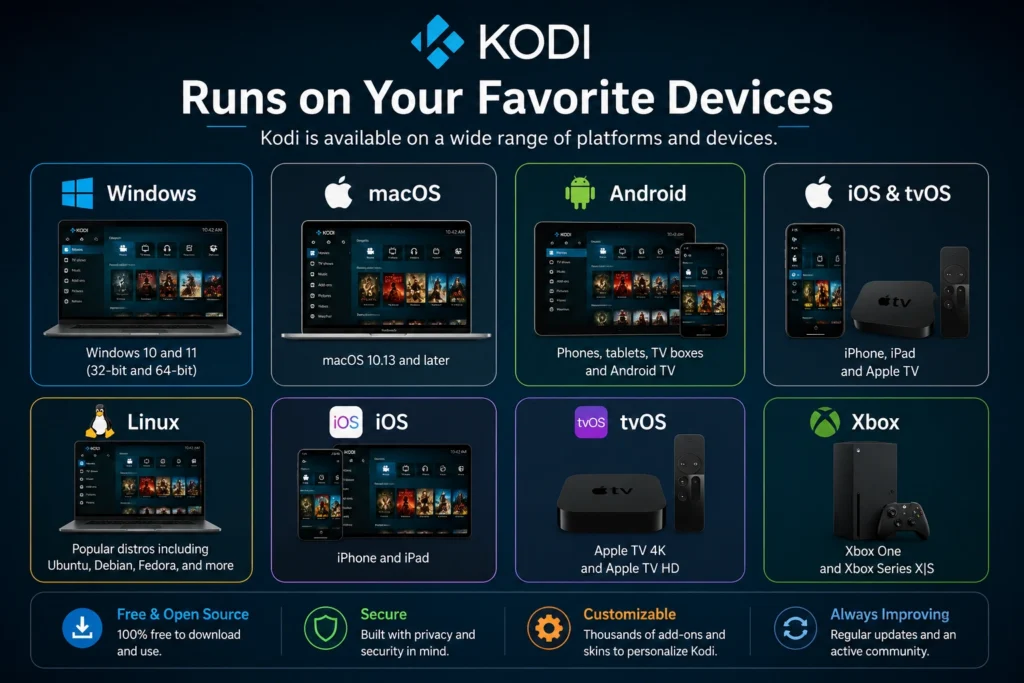
- A device that supports Kodi: Windows, macOS, Linux, Android, iOS/iPadOS, tvOS, or an Xbox console are all officially supported.
- A stable internet connection, especially if you plan to stream from official online sources.
- Your own media files (if you want to build a local library) or accounts with the streaming services you already subscribe to.
- A few minutes of patience — Kodi has a lot of settings, and beginners often skip past useful ones on the first pass.
Why Choose Kodi Over Other Media Center Software?
Before diving into setup, it helps to understand what sets Kodi apart from other media players you might be considering. Unlike closed, proprietary streaming apps, Kodi is fully open source, meaning its code is publicly auditable and its development is driven by community contributions rather than a single company’s roadmap. That openness translates into a few practical advantages for beginners:
- No licensing fees, ever — the software itself will always remain free.
- Extensive customization, from skins to keyboard shortcuts to metadata handling.
- Broad hardware support, running on everything from a Raspberry Pi to a full desktop PC.
- An active community, with the official Kodi forums and wiki offering troubleshooting help for nearly any issue a beginner might hit.
The trade-off is that Kodi has a steeper initial learning curve than a single-purpose streaming app, which is exactly why a structured first setup — the focus of this Kodi beginner guide — matters so much.
Step-by-Step Kodi Beginner Guide
Step 1: Download Kodi From the Official Source
Always download Kodi directly from kodi.tv rather than a third-party site or an unfamiliar APK link. The official site detects your operating system automatically and offers the correct installer for Windows, macOS, Linux, Android, iOS, or other supported platforms.
Downloading from the source avoids two common problems: outdated builds that miss security patches, and modified versions bundled with unwanted software.
Step 2: Install and Launch Kodi
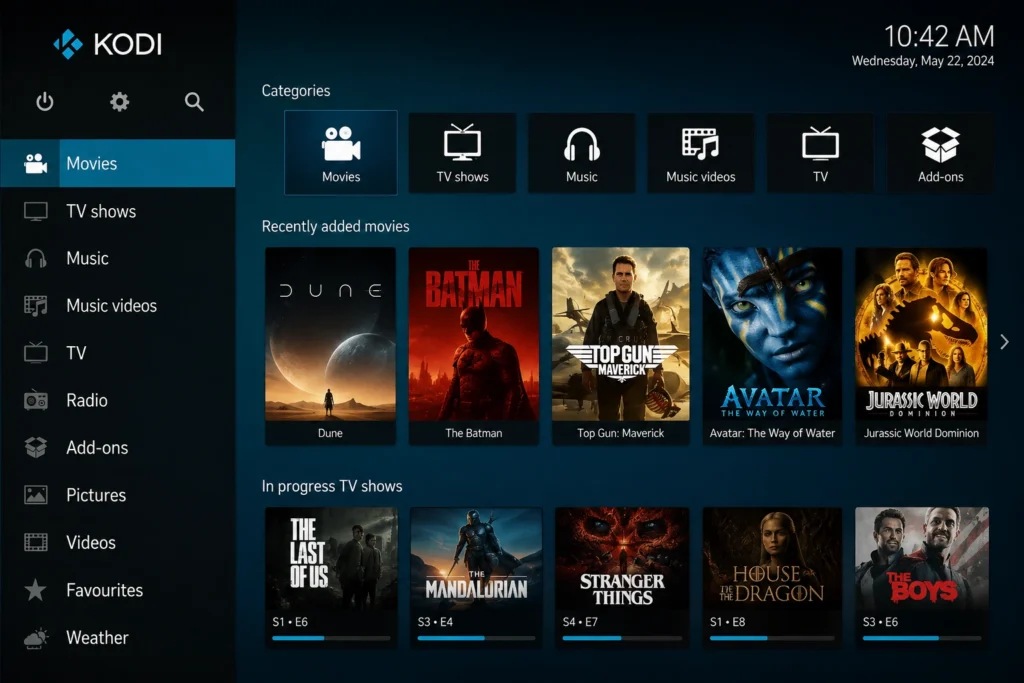
Installation follows the normal process for your operating system — run the installer on desktop platforms, or install through the Google Play Store on Android. Once installed, launch Kodi and you’ll land on the home screen, which is organized into a simple, icon-based menu for Movies, TV Shows, Music, Pictures, and Add-ons.
Take a few minutes on first launch to explore each menu section before adding any content, so the layout feels familiar once your library starts to grow.
Step 3: Set Your Language and Region Preferences
Head into Settings > Interface to set your preferred language, region, and time zone. This affects date formatting, subtitle defaults, and how metadata is displayed throughout the app.
Step 4: Add Your Personal Media Library
If you have your own movies, TV shows, music, or photos stored on a hard drive, network-attached storage, or cloud service, this is where Kodi becomes genuinely powerful. Go to Movies (or TV Shows) > Add Videos, then point Kodi to the folder containing your files.
Kodi will automatically try to match your files with online metadata — cover art, cast information, and descriptions — as long as your files are named clearly (e.g., “Movie Title (Year).mkv”).
Step 5: Explore the Official Add-on Repository
Kodi’s built-in add-on repository includes officially reviewed add-ons, including well-known streaming partners. To browse it, go to Add-ons > Download from the main menu. Only add-ons listed here have gone through Kodi’s own review process.
Avoid installing add-ons from unknown third-party sources or “builds” promoted on forums and social media promising free access to paid content. These are a common source of malware and copyright issues, and they fall outside anything Team Kodi reviews or supports.
Step 6: Customize Your Skin and Appearance
Kodi ships with a default skin called Estuary, but you can change the entire look of the interface under Settings > Interface > Skin. Additional official skins are available through the same add-on repository from Step 5, letting you choose a layout that better matches your TV size or navigation preferences.
Step 7: Configure Playback and Audio Settings
Under Settings > Player, you can adjust video and audio processing to match your hardware — for example, enabling hardware acceleration for smoother 4K playback, or adjusting audio passthrough settings if you’re using a home theater receiver. Most beginners can leave these on their defaults, but it’s worth knowing where they live if you run into stuttering or sync issues later.
Step 8: Back Up Your Configuration
Once your library, skin, and settings are set up the way you like, back up your Kodi profile folder so you don’t have to redo everything if you switch devices or reinstall. This is especially useful if you’ve spent time fine-tuning metadata scrapers or a custom skin layout.
On most platforms, your Kodi profile data lives in a “userdata” folder inside the main Kodi installation directory. Copying this folder to an external drive or cloud storage before making major changes — like a factory reset or a full reinstall — means you can restore your entire setup, including watched status, favorites, and add-on settings, in minutes rather than starting from scratch.
Navigating the Kodi Interface Like a Pro
Once the basic setup from this Kodi beginner guide is complete, a little time spent learning navigation shortcuts pays off quickly:
- Context menu: right-click (or long-press on touch devices) on almost any item to bring up options like “Information,” “Mark as watched,” or “Remove from library.”
- Search: most sections include a built-in search icon, letting you jump directly to a title instead of scrolling through a growing library.
- Favorites: you can pin frequently used add-ons, files, or shortcuts to a dedicated Favorites menu for one-click access.
- Keyboard shortcuts: on desktop platforms, shortcuts like the spacebar for play/pause and arrow keys for navigation make Kodi feel much closer to a native desktop app than a TV-only interface.
Kodi Beginner Guide: Understanding Add-ons Safely
Add-ons are where most of the confusion around Kodi comes from, so it’s worth a dedicated section. There are three broad categories:
| Add-on type | What it is | Risk level |
|---|---|---|
| Official Kodi repository add-ons | Reviewed and listed directly by Team Kodi | Low — vetted by the Kodi Foundation |
| Legitimate third-party add-ons for licensed services | Connect to services you already pay for or that offer free, legal content | Low to moderate — verify the developer independently |
| Unofficial “fully loaded” builds and piracy add-ons | Promise free access to paid content, movies, or live TV without a subscription | High — legal risk and common malware source |
Sticking to the first two categories is the safest way to use Kodi long-term. If an add-on sounds too good to be true — free access to premium channels or new releases with no subscription — it almost certainly violates copyright law and puts your device at risk.
Is Kodi Legal and Safe to Use?
Kodi itself is completely legal. It’s open-source software with millions of legitimate users who use it to organize home movie collections, stream licensed content, and manage personal music libraries. The legal risk comes entirely from what you connect to it.
Cybersecurity researchers have repeatedly flagged unofficial streaming add-ons and “fully loaded” boxes as a common source of malware and fraud, as detailed in independent research on illegal streaming device risks. To keep your setup safe:
- Only install add-ons from the official Kodi repository or verified developers.
- Never enter payment information through a source you can’t independently verify.
- Use Kodi with your own media and legally licensed services, exactly as intended by Team Kodi.
Common Beginner Mistakes to Avoid
- Installing unofficial builds first: many new users skip the official setup entirely and install a pre-configured “build” from a forum, which often bundles unreviewed and risky add-ons by default.
- Ignoring updates: Kodi and its add-ons receive regular security and stability updates — skipping them leaves known bugs unpatched.
- Overloading the library with too many sources at once: add your media gradually so you can catch naming or scraping issues early.
- Not backing up settings: losing a carefully tuned setup after a device change is a common and avoidable frustration.
Frequently Asked Questions
Is Kodi free to use?
Yes. Kodi is completely free and open-source, with no license fees or hidden costs for the core software.
Does Kodi come with movies or TV shows built in?
No. Kodi has no built-in content. You need to add your own media files or install add-ons that connect to legitimate content sources.
Is Kodi legal?
Yes, Kodi itself is fully legal software. Legal risk only arises from installing unofficial add-ons that provide unauthorized access to copyrighted content, which Team Kodi does not endorse.
What devices support Kodi?
Kodi officially supports Windows, macOS, Linux, Android, iOS/iPadOS, tvOS, and Xbox One/Series consoles, among other platforms.
Do I need to enable “unknown sources” to use Kodi safely?
No. The official add-on repository, accessible through Add-ons > Download, doesn’t require enabling unknown sources. That setting is only needed for third-party add-ons, which carry higher risk.
How do I update Kodi?
On Android, updates typically install automatically through the Google Play Store. On Windows, macOS, and Linux, you’ll need to download the latest installer from the official site periodically.
Can I use Kodi to stream Netflix or other subscription services?
Some official add-ons connect to licensed streaming partners, though availability varies by platform and region. Check the official add-on repository for current options.
Why is my Kodi library not showing artwork or descriptions?
This usually comes down to file naming. Kodi’s metadata scrapers work best when files follow a clear naming convention, such as “Movie Title (Year).”
Final Thoughts
This Kodi beginner guide covers the core setup every new user needs: install from the official source, organize your own media library, and stick to Kodi’s official add-on repository rather than unverified third-party builds. Once the basics are in place, Kodi becomes one of the most flexible, genuinely free media center platforms available — as long as you use it the way its own developers intend, with content you own or are licensed to access.