
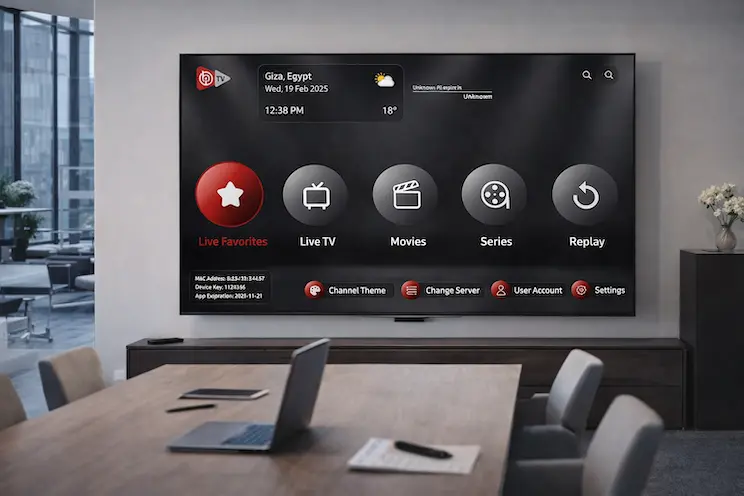
If you just installed the app and want a straightforward IBO Player setup guide, here’s the short version: download it from an official app store, activate it with a device ID or account login, connect it to a licensed IPTV subscription, then adjust playback and parental settings. The rest of this guide walks through each step in detail, plus fixes for the most common setup problems.
IBO Player is a media player app — it doesn’t include any channels, movies, or shows of its own. It’s built to play content that you load into it from a separate, licensed source. That distinction matters, because it also means the quality of your experience depends heavily on getting the setup right the first time.
Table of Contents
What Is IBO Player?
IBO Player is a third-party streaming player available for Android, Android TV, Amazon Fire TV, Samsung and LG smart TVs, iOS, and Roku. According to its listings on the Google Play Store and Apple App Store, the app provides a simple interface for organizing and playing back video streams, with support for high-definition and 4K playback, subtitle handling, favorites lists, and parental controls.
The app itself does not sell, host, or supply television channels. To watch anything, you need to connect it to a content source — typically a subscription from a licensed IPTV provider or a legitimate streaming service that supports third-party players.
Before you start this IBO Player setup guide, keep two things in mind:
- Only connect IBO Player to services you’re legally authorized to use.
- Free “test” access offered by unofficial resellers is a common source of account fraud and malware, according to consumer protection researchers — more on that later in this guide.
Before You Begin: What You’ll Need
A smooth setup depends on having a few things ready in advance:
| Requirement | Why it matters |
|---|---|
| A supported device (Fire TV, Android TV, smart TV, phone/tablet, or iOS) | The setup screens differ slightly by platform |
| A stable internet connection (10+ Mbps recommended for HD/4K) | Buffering is usually a connection issue, not an app issue |
| Your subscription credentials from a licensed provider | The app itself doesn’t include any content |
| The latest version of the app | Older versions can have playback bugs or expired certificates |
| A few minutes of uninterrupted setup time | Activation codes and device IDs are often time-sensitive |
Step-by-Step IBO Player Setup Guide
Step 1: Download and Install IBO Player
Start by downloading IBO Player from the store that matches your device:
- Android phones and tablets: the Google Play Store listing.
- iPhone, iPad, and Apple TV: the Apple App Store listing.
- Roku devices: available through the Roku Channel Store.
- Amazon Fire TV: search for it directly in the Amazon Appstore on your Fire TV device, or check the Amazon Appstore listing on the web first.
- Samsung and LG smart TVs: available through the built-in Samsung Smart Hub or LG Content Store on supported models.
Downloading from an official app store, rather than a random APK link found online, is the single biggest step you can take toward keeping your device secure.
Step 2: Launch the App and Choose Your Setup Method
When you open IBO Player for the first time, you’ll typically be shown one or more ways to connect the app to your subscription:
- Device ID / MAC address activation — the app displays a unique code or MAC address, which you register with your provider’s system to link your device.
- Email and password login — if your provider issues you an account, you’ll sign in directly inside the app.
- QR code activation — some versions let you scan a code from your provider’s customer portal to pair the device instantly.
Whichever method your provider supports, write down or screenshot any code the app shows you before contacting your provider’s support team — this is the most common point where new users get stuck.
Step 3: Activate Your Subscription
Once you have your device ID, login, or activation code ready, follow your provider’s instructions to link it to your account. This step is completed on your provider’s end, not inside IBO Player itself, so response times can vary from instant to a few hours depending on the service.
If activation doesn’t complete within the timeframe your provider quotes, double-check that:
- You entered the device ID or MAC address exactly as shown, including capitalization.
- Your subscription is currently active and hasn’t expired.
- You’re using the correct account if you manage subscriptions for multiple devices.
Step 4: Configure Basic Playback Settings
With the app activated, open the settings menu to fine-tune playback for your device and connection speed:
- Video player engine: most versions let you choose between the default player and an alternative engine (often based on ExoPlayer or VLC libraries); switching engines can resolve stuttering on certain devices.
- Buffer size: increasing the buffer slightly can reduce interruptions on slower connections, at the cost of a longer initial load time.
- Aspect ratio and resolution: match this to your TV or screen for the cleanest picture.
- Subtitle and audio track defaults: set your preferred language once so you don’t have to change it every session.
Step 5: Organize Your Content and Favorites
IBO Player typically includes tools to keep large content lists manageable:
- Group content into categories for faster browsing.
- Star or “favorite” the channels and titles you use most.
- Hide categories or entries you don’t want visible.
- Use the search function to jump straight to a title instead of scrolling.
Step 6: Set Up Parental Controls
If other members of your household — especially children — will use the same device, set up a PIN or password lock in the settings menu before handing over the remote. This usually restricts access to specific categories or requires a code to exit the current profile.
Step 7: Test Playback and Confirm Everything Works
Before considering the setup finished, test the app across a few scenarios:
- Play something during peak hours (evening, when networks are busiest) to check for buffering.
- Test on Wi-Fi and, if applicable, on a wired connection to compare stability.
- Restart the app after activation to confirm your subscription and settings were saved.
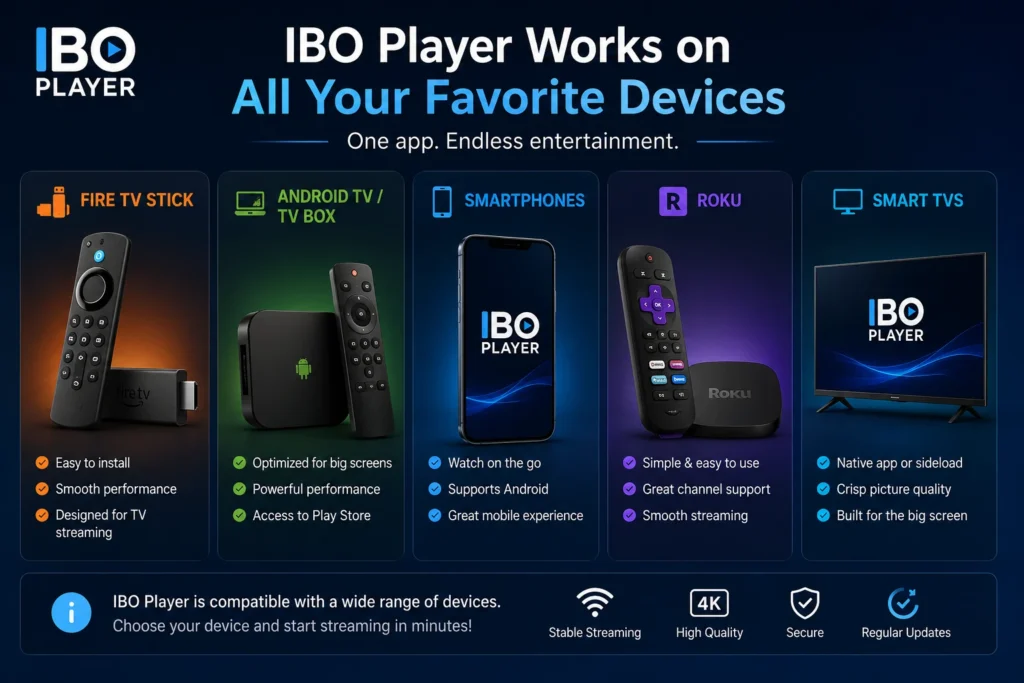
IBO Player Setup on Popular Devices
The core steps in this IBO Player setup guide stay the same across platforms, but a few details differ by device:
| Device | Install source | Notes |
|---|---|---|
| Amazon Fire TV / Firestick | Amazon Appstore (availability varies by app version) | Restart the device after installation if the app doesn’t appear in “Your Apps” |
| Android TV boxes | Google Play Store | Use a wired Ethernet adapter where possible for the most stable playback |
| Android phones/tablets | Google Play Store | Works well as a secondary or travel device |
| iPhone, iPad, Apple TV | Apple App Store | Some features may differ slightly from the Android version |
| Roku | Roku Channel Store | Search “IBO” directly from the Roku home screen |
| Samsung / LG smart TVs | Samsung Smart Hub / LG Content Store | Older TV models may run an outdated app version with fewer features |
Common IBO Player Setup Issues and Fixes
Most setup problems fall into a handful of predictable categories:
- App won’t activate: confirm the device ID/MAC address was entered correctly and that your subscription is active.
- Buffering or freezing: lower the video quality, switch player engines in settings, or move closer to your router.
- App crashes on launch: clear the app cache, or uninstall and reinstall the latest version from the official store.
- No sound or subtitles: check the audio/subtitle track settings, since some content uses non-default tracks.
- Content list won’t load: this is almost always a provider-side or connection issue rather than an app bug — contact your subscription provider directly.
- Login expired unexpectedly: re-enter your credentials, and confirm your subscription hasn’t lapsed or been moved to a new device.
Is IBO Player Safe and Legal?
IBO Player, as an app, is simply a media player — comparable in function to any other playback software. Whether your overall setup is legal and safe depends entirely on where your content comes from.
Consumer protection researchers have repeatedly warned that unauthorized or “too good to be true” streaming subscriptions carry real risks, including malware, stolen payment information, and exposure to unregulated services with no customer accountability, as outlined in independent research on illegal streaming device risks. To keep your IBO Player setup both safe and lawful:
- Only subscribe to services from licensed, reputable IPTV or streaming providers.
- Avoid offers that seem unusually cheap compared to standard market pricing.
- Never enter payment details on a provider’s site that lacks basic security (no HTTPS, no clear business information).
- Keep the app itself updated through official app stores only.
IBO Player Setup Guide: Tips for Best Performance
A few small adjustments make a noticeable difference after the initial setup is complete:
- Restart your router periodically — this clears temporary network congestion that can cause buffering.
- Use 5GHz Wi-Fi or Ethernet where your device supports it, since 2.4GHz networks are more prone to interference.
- Keep the app updated to benefit from bug fixes and compatibility improvements.
- Avoid running multiple heavy apps at once on lower-powered streaming boxes, which can strain limited RAM.
- Log out and back in if playback issues persist after a provider-side update.
Frequently Asked Questions
Is IBO Player free to download?
Yes, the app itself is typically free or low-cost to download from official app stores. Any ongoing content subscription is separate and billed by your provider, not by the app.
Do I need a subscription to use IBO Player?
Yes. IBO Player is a playback tool only — it doesn’t include channels or shows. You need an active subscription from a licensed content provider to watch anything.
Which devices support IBO Player?
Common supported platforms include Android phones and tablets, Android TV boxes, Amazon Fire TV, iOS devices, Apple TV, Roku, and select Samsung and LG smart TVs.
Why won’t my IBO Player activation code work?
Double-check that you copied the device ID or MAC address exactly, confirm your subscription is active, and make sure enough time has passed for your provider to process the activation.
Can I use IBO Player on more than one device?
This depends entirely on your subscription provider’s terms — some allow multiple simultaneous connections, while others restrict access to a single device at a time.
Why does IBO Player keep buffering?
Buffering is almost always related to internet speed, Wi-Fi interference, or network congestion during peak hours rather than the app itself. Try a wired connection or lower resolution setting first.
Is it safe to enter my payment details through an IPTV provider’s website?
Only if the provider is reputable and the site uses standard security practices like HTTPS. Avoid unfamiliar sellers offering deeply discounted or “unlimited” access with no clear business information.
How do I update IBO Player to the latest version?
Check the app store you originally downloaded it from (Google Play, Apple App Store, Amazon Appstore, or Roku Channel Store) for available updates, and install them promptly.
Final Thoughts
Getting through this IBO Player setup guide from start to finish usually takes less than fifteen minutes once you have your subscription details on hand. The process itself is straightforward: install from an official store, activate with your provider, configure playback settings, and test everything before daily use. The part that matters most for your safety and your experience isn’t the app configuration — it’s making sure the subscription behind it comes from a licensed, trustworthy provider. Get that piece right, and the rest of the setup falls into place quickly.