
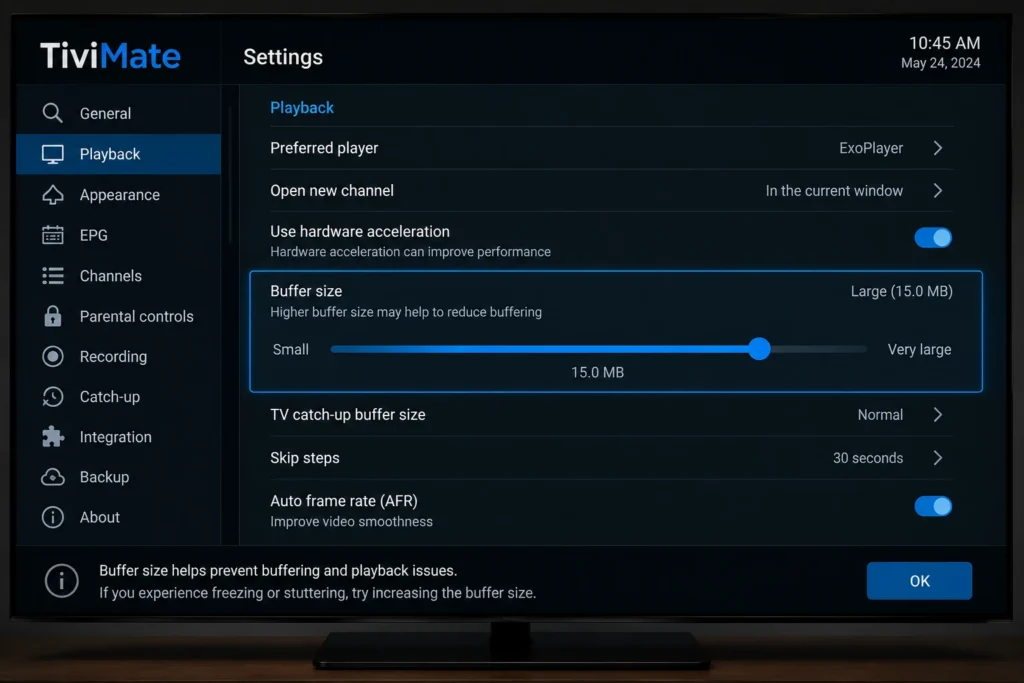
Getting playback right in TiviMate usually comes down to a handful of settings, not the app itself. This guide to the TiviMate best settings walks through buffer size, video player selection, aspect ratio, and EPG configuration — the exact adjustments most likely to fix buffering, freezing, or a mismatched picture.
Most performance issues trace back to your network rather than the app, but the right settings can still make a real difference, especially on weaker connections or older devices. Let’s go through them one by one.
Table of Contents
Before You Adjust Anything: Check Your Connection
Settings can only compensate for so much. Before changing anything inside TiviMate, run a quick check with Speedtest by Ookla to confirm your connection can actually support the resolution you’re watching. If your speed is well below what your provider recommends, no amount of settings tweaking will fully fix playback issues.
The TiviMate Best Settings for Playback
1. Buffer Size
Buffer size controls how much video data pre-loads before playback starts and how much cushion the app has during momentary network dips.
- Weak or unstable connections: Increase buffer size to reduce freezing, at the cost of a slightly longer channel-change delay
- Strong, stable connections: Keep buffer size closer to default for faster channel switching
This single setting is often the most effective of all the TiviMate best settings for reducing buffering.
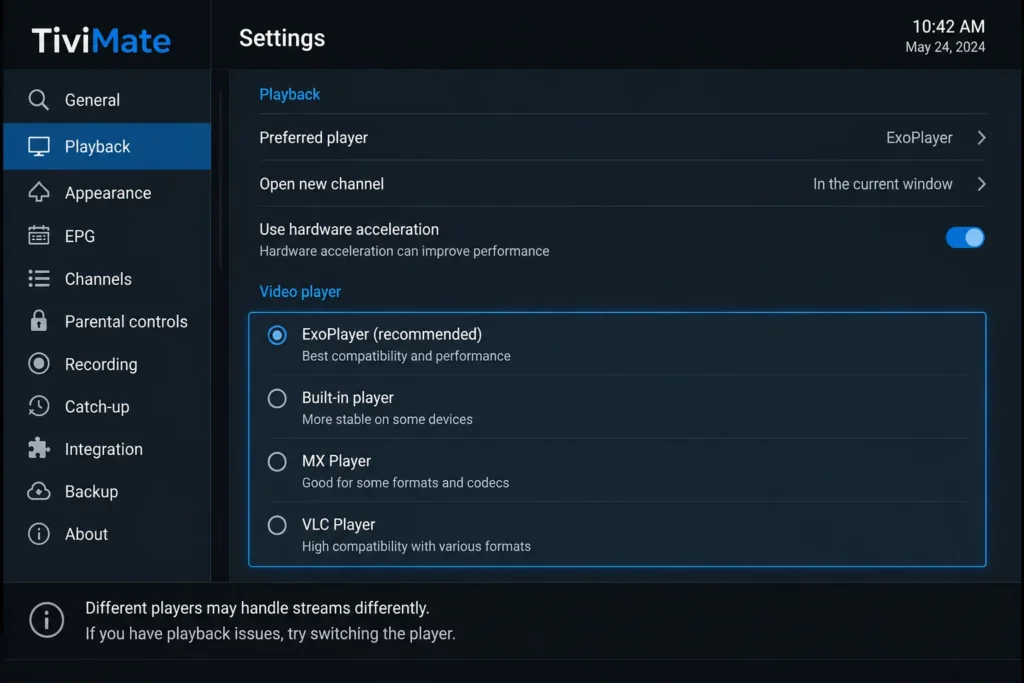
2. Video Player Selection
TiviMate offers multiple built-in playback engines. If a specific channel won’t play, stutters, or shows artifacts, switching the player type in settings can resolve compatibility issues without affecting anything else.
3. Aspect Ratio
Set aspect ratio to match your TV’s native resolution. A mismatch here doesn’t cause buffering, but it can make even a technically strong stream look stretched, cropped, or unnecessarily soft.
4. EPG Time Range and Grid Size
Adjusting how many hours the EPG displays at once, and how large each grid cell appears, doesn’t affect playback performance but significantly improves day-to-day usability, especially on larger screens.
5. Channel List Refresh Interval
If your provider updates its channel list or EPG data regularly, setting an appropriate refresh interval keeps your guide accurate without unnecessarily re-syncing too often, which can briefly interrupt playback.
6. Hardware Decoding
Where available, enabling hardware decoding shifts video processing to your device’s dedicated chip instead of relying purely on software decoding, generally resulting in smoother playback on supported devices.
Recommended Settings by Connection Type
| Connection Type | Buffer Size | Video Player | Notes |
|---|---|---|---|
| Wired Ethernet, strong speed | Default/Low | Default player | Prioritize fast channel switching |
| Wi-Fi, moderate speed | Medium | Default player | Balances stability and responsiveness |
| Wi-Fi, weak or distant signal | High | Try alternate player if issues persist | Prioritize stability over switching speed |
| Older/underpowered device | Medium-High | Hardware decoding enabled, if supported | Reduces strain on device processing |
Network Settings That Complement TiviMate’s Configuration
Adjusting in-app settings only goes so far if your network itself is the bottleneck. A few complementary changes worth checking:
- Use Ethernet over Wi-Fi where your device supports it, for a more stable connection than wireless alone
- Switch to a faster DNS server, such as Google Public DNS, if channel loading feels slow
- Position your router centrally and away from thick walls or interference-heavy electronics
- Check your internet plan against recommended speeds; the FCC’s broadband speed guide offers a useful independent baseline
Troubleshooting With Settings Adjustments
| Symptom | Setting to Try First | Why It Helps |
|---|---|---|
| Frequent buffering/freezing | Increase buffer size | Adds cushion for network fluctuations |
| Specific channel won’t play | Switch video player | Resolves player compatibility issues |
| Picture looks stretched/cropped | Adjust aspect ratio | Matches output to your TV’s resolution |
| EPG feels cluttered or hard to read | Adjust grid size/time range | Improves readability without affecting playback |
| Playback stutters on older device | Enable hardware decoding | Offloads processing to dedicated hardware |
Best Practices for Long-Term Performance
- Revisit your buffer size setting if your internet plan or network setup changes
- Keep the app updated through your official app store, since performance optimizations are often included in updates
- Restart your router weekly to prevent gradual network slowdowns
- Re-test your internet speed periodically, especially if playback quality changes over time
Frequently Asked Questions
What is the single most important TiviMate setting for buffering?
Buffer size has the biggest direct impact — increasing it gives the app more cushion to absorb network fluctuations.
Should I increase or decrease buffer size for Wi-Fi?
Generally increase it. Wi-Fi connections are more prone to brief fluctuations than wired Ethernet, and a larger buffer helps smooth those out.
Does changing the video player fix buffering?
Not directly — video player selection mainly resolves compatibility or decoding issues with specific channels, rather than network-related buffering.
What are the best TiviMate settings for a 4K TV?
Match your aspect ratio to your TV’s native resolution and enable hardware decoding if your device supports it, alongside a buffer size suited to your connection stability.
Do TiviMate settings alone fix buffering, or does my network matter too?
Settings can help, but they can’t fully compensate for insufficient bandwidth or a weak Wi-Fi signal. Address your network first for the best results.
Why does the picture look cropped even with good settings?
This is usually an aspect ratio mismatch between the app’s output and your TV’s native resolution, not a performance issue.
Does hardware decoding make a noticeable difference?
On older or underpowered devices, yes — it offloads video processing from software to dedicated hardware, often resulting in smoother playback.
How often should I revisit my TiviMate settings? over time.
Whenever your internet plan, router, or device changes, or if you notice a change in playback quality
Final Thoughts
The TiviMate best settings for most users come down to a properly sized buffer, the right video player for problem channels, and an aspect ratio matched to your screen. Pair these with a stable network connection, and you’ll get consistently smooth playback rather than settings fighting against a weak connection. Start with buffer size, since it has the most direct impact, then fine-tune from there based on your specific setup.