
Getting IPTV on Samsung Smart TV running smoothly is mostly about installing the right app and making sure your network and picture settings are configured correctly. This guide covers the full process, step by step, using Samsung’s Tizen-based Smart Hub platform.
Samsung Smart TVs run on Tizen OS, Samsung’s proprietary operating system, which has its own app store separate from Google Play or the Amazon Appstore. That means the setup process looks a little different than on Fire TV or Android TV devices, though the underlying principles are the same.
Table of Contents
What You’ll Need
- A Samsung Smart TV connected to the internet
- A Samsung account (free to create, needed for some app downloads)
- An active subscription to a licensed live TV app, or a free ad-supported option
- Router access, in case network troubleshooting is needed
This guide covers only legal, officially licensed IPTV apps available through Samsung’s Smart Hub. It does not cover unauthorized playlists, shared login credentials, or unlicensed streaming sources.
Step 1: Update Your Samsung Smart TV Software
Outdated firmware can cause app crashes or installation failures, so check for updates first.
- Press the Home button on your remote
- Go to Settings > Support > Software Update
- Select Update Now and restart the TV if prompted
Samsung periodically pushes Tizen updates that improve app stability and add compatibility with newer streaming services.
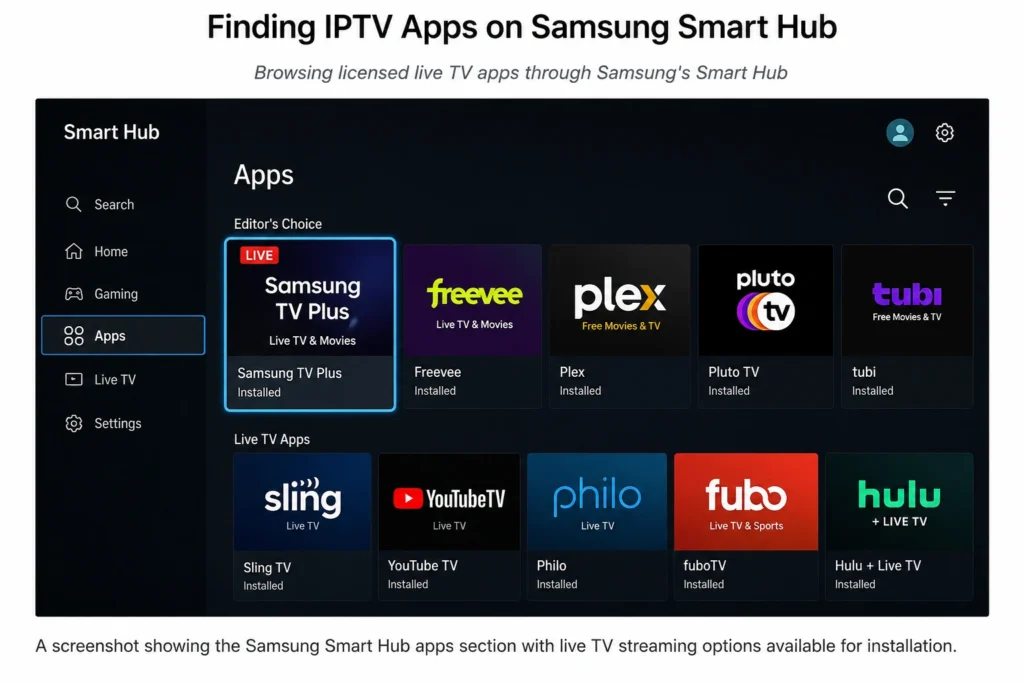
Step 2: Find a Licensed IPTV App in the Smart Hub
Open the Smart Hub by pressing the Home button, then navigate to the Apps section. Search for a legitimate live TV provider. Commonly available licensed options include:
- YouTube TV — large channel bundle with unlimited cloud DVR
- Sling TV — customizable, à la carte channel packages
- Hulu + Live TV — live channels combined with on-demand content
- Philo — budget-friendly entertainment lineup
- Pluto TV — free, ad-supported live channels
[INTERNAL LINK: comparison of the best IPTV apps for streaming devices]
App availability can vary slightly by TV model year and region, so if one isn’t listed, check the provider’s official website for supported device information.
Step 3: Install the App
- Highlight the app in the search results
- Select Install
- Once the download finishes, the app icon will appear in your Smart Hub apps row
- Select it to launch
Apps installed through the Smart Hub typically update automatically, keeping the channel guide and features current.
Step 4: Sign In and Set Up Your Account
Log in using your existing subscription details, or start a new sign-up if the app allows it directly. During setup, most apps prompt you to:
- Enter your ZIP code for local channel availability
- Create individual profiles for household members
- Build a favorites list for faster channel browsing
A few minutes spent here pays off with a much smoother day-to-day experience.
Step 5: Optimize Your Network Connection
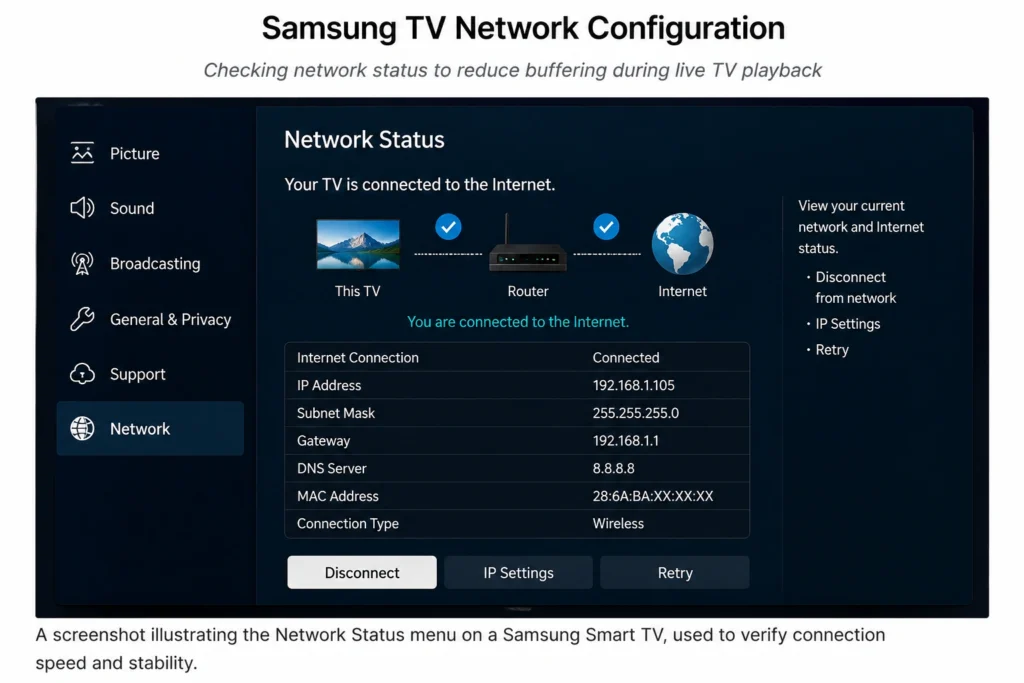
A weak or unstable connection is the leading cause of buffering. Under Settings > General > Network > Network Status:
- Use a wired Ethernet connection if your Samsung TV has a LAN port — this is generally more stable than Wi-Fi, especially for 4K streams
- If using Wi-Fi, keep the TV within strong range of your router, or add a mesh extender for larger homes
- Run the built-in network test to confirm your speed meets the app’s minimum requirement
| Content Type | Minimum Recommended Speed |
|---|---|
| SD live TV | 3–5 Mbps |
| HD live TV | 10–25 Mbps |
| 4K live TV | 25+ Mbps |
Step 6: Adjust Picture and Sound Settings
Mismatched picture or sound settings can lead to a dim image, motion issues, or audio sync problems on live content. Under Settings > Picture and Settings > Sound:
- Choose a picture mode like Standard or Movie rather than an overly processed mode, which can introduce input lag or unnatural motion smoothing on live TV
- Enable HDR only if both your TV and the specific content support it
- Set the audio output to match your setup — TV speakers, soundbar via ARC/eARC, or a full surround receiver
[INTERNAL LINK: troubleshooting common Samsung Smart TV issues]
Step 7: Test Playback and Fine-Tune
With everything configured, test a few channels, including a live sports or news stream, since these tend to be the most demanding. If problems appear:
- Restart the app, then the TV if that doesn’t resolve it
- Lower the stream quality manually within the app, if available
- Re-run the network test to rule out a connectivity issue
- Check the provider’s official support page for known outages in your area
Common Samsung Smart TV IPTV Issues and Fixes
| Issue | Likely Cause | Fix |
|---|---|---|
| App won’t install | Outdated Tizen firmware | Run Software Update before reinstalling |
| Frequent buffering | Weak Wi-Fi signal | Switch to Ethernet or move closer to router |
| No sound through soundbar | ARC/eARC misconfiguration | Check HDMI-CEC and audio output settings |
| App freezes on launch | Corrupted app cache | Reinstall the app from Smart Hub |
| Dim or overly smooth picture | Picture mode processing | Switch to Standard or Movie picture mode |
Do You Need a Streaming Device If You Have a Samsung Smart TV?
Not necessarily. Most Samsung Smart TVs from recent years support the major licensed IPTV apps natively through the Smart Hub, so a separate streaming device like a Fire TV Stick or Chromecast usually isn’t required just for live TV. That said, if your TV is several years old and no longer receives app updates, a modern streaming device plugged into an HDMI port can be a simpler fix than trying to force compatibility on aging hardware.
Frequently Asked Questions
How do I get IPTV on Samsung Smart TV for the first time?
Update your TV’s software, open the Smart Hub, search for a licensed live TV app, install it, and sign in with your subscription. Then confirm your network speed meets the app’s requirements.
Do all Samsung Smart TVs support the same IPTV apps?
Not exactly. App availability can vary by TV model year and Tizen OS version, so always check the Smart Hub search or the provider’s official website to confirm compatibility with your specific model.
Why does my Samsung TV keep buffering during live TV streams?
Buffering is usually caused by insufficient internet speed, Wi-Fi interference, or too many devices on the network at once. Switching to a wired Ethernet connection often resolves it.
Can I use a Samsung Smart TV without a Samsung account for IPTV apps?
Some apps can be launched without one, but a free Samsung account is typically required to download apps from the Smart Hub in the first place.
Is a VPN needed to use IPTV apps on a Samsung Smart TV?
No, licensed streaming apps work without a VPN. It’s an optional privacy tool for general browsing, unrelated to app functionality.
Why is there no sound when I stream live TV through my soundbar?
This is usually an ARC/eARC or HDMI-CEC configuration issue. Check that the correct HDMI port is used and that audio output is set to match your soundbar in the TV’s sound settings.
Does Samsung Smart TV support 4K IPTV streaming?
Yes, on TVs with 4K panels and Smart Hub support, provided the app, your subscription tier, and your internet speed all support 4K playback.
What should I do if an IPTV app isn’t in my Samsung Smart Hub?
Availability can vary by region and TV model due to licensing agreements. Check the provider’s official website for supported devices, or consider a streaming device as an alternative.
Final Thoughts
Setting up IPTV on Samsung Smart TV comes down to a straightforward routine: update your firmware, install a licensed app through the Smart Hub, configure your network and picture settings, and test before troubleshooting further. Work through these seven steps, and most playback issues never get a chance to start. From there, it’s simply a matter of choosing the licensed live TV service that best matches your household’s viewing habits.