
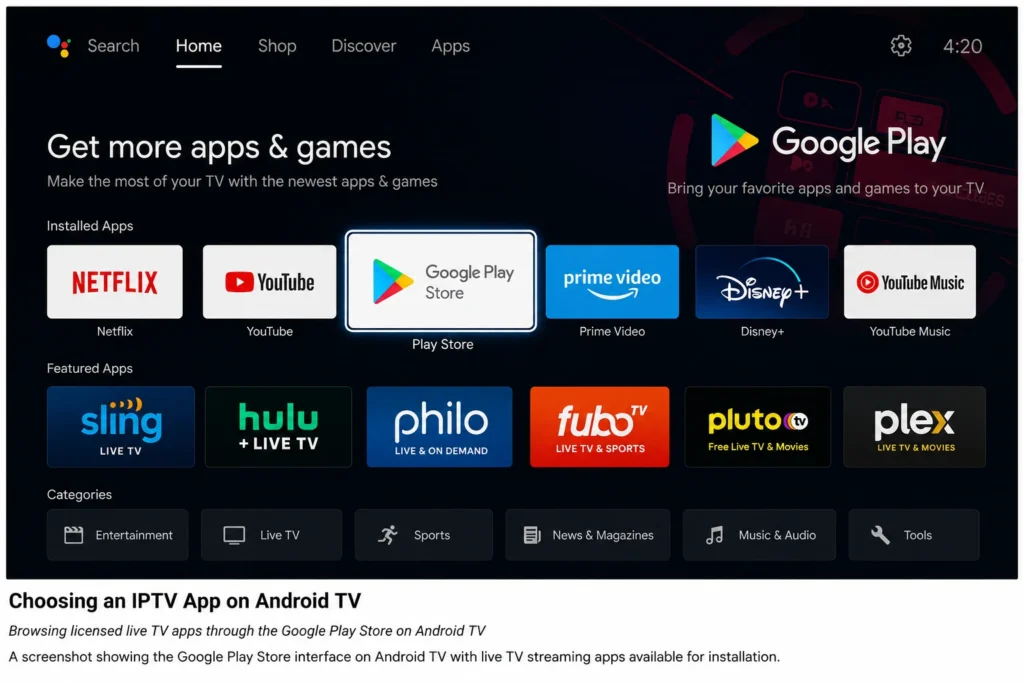
Setting up IPTV on an Android TV device doesn’t have to be complicated. This Android TV IPTV setup guide walks through everything from installing a licensed streaming app to configuring your network for stable playback, so you can get live TV running correctly the first time.
Android TV is Google’s smart TV platform, built into many televisions and streaming boxes like the NVIDIA Shield TV and Chromecast with Google TV. Because it runs on the Google Play Store, setup is generally more standardized than on other platforms.
Table of Contents
Before You Start: What You’ll Need
- An Android TV device connected to the internet
- A Google account signed in on the device
- An active subscription to a licensed live TV streaming service (or a free ad-supported app)
- A stable home network, ideally with router access nearby
This guide covers legal, subscription-based or officially free IPTV apps only. It does not cover unauthorized playlists, third-party credential sharing, or unlicensed streaming sources, which carry both legal and security risks.
Step 1: Confirm Your Android TV Is Updated
Before installing anything, check that your device is running the latest system software.
- Go to Settings > Device Preferences > About
- Select System Update
- Install any available updates and restart the device
Running an outdated Android TV version can cause app compatibility issues and playback bugs that are already fixed in newer releases.
Step 2: Choose a Licensed IPTV App
Search the Google Play Store directly on your Android TV device for a legitimate live TV service. Popular licensed options include:
- YouTube TV — large channel bundle with cloud DVR
- Sling TV — customizable, à la carte channel packages
- Philo — budget-friendly entertainment channels
- Pluto TV — free, ad-supported live channels
- Hulu + Live TV — live channels bundled with on-demand content
Each of these apps handles licensing and content delivery directly, so you won’t need to configure external playlists or credentials.
Step 3: Install the App
- From the Android TV home screen, open the Apps row or the Google Play Store icon
- Search for the app by name
- Select Install
- Once installed, open the app from your home screen or the Apps menu
Android TV automatically handles permissions and updates for apps installed through the Play Store, which keeps the setup process simple.
Step 4: Sign In and Configure Your Profile
Open the app and sign in with your subscription credentials, or start a new account if you’re subscribing for the first time. Most apps let you:
- Set a home ZIP code for local channel availability
- Create individual user profiles for different household members
- Customize a favorites list or channel guide order
Setting up profiles correctly from the start makes navigation faster later on.
Step 5: Optimize Network Settings
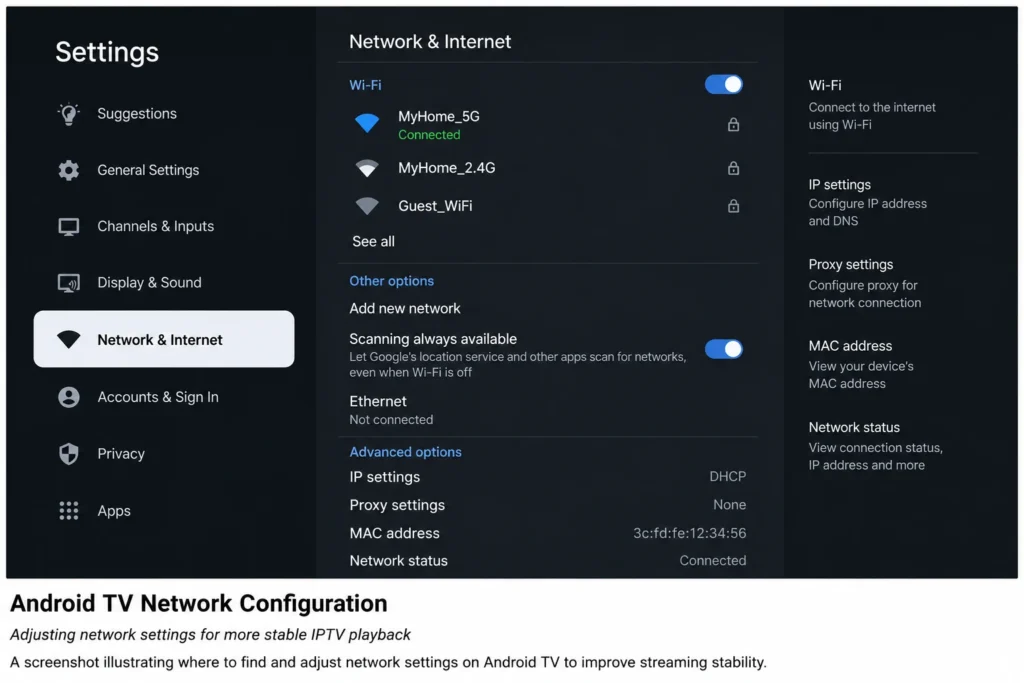
Network stability is the single biggest factor in smooth IPTV playback. Under Settings > Network & Internet:
- Prefer Ethernet over Wi-Fi if your Android TV device or box supports a wired connection — this reduces buffering, especially for 4K content
- If using Wi-Fi, position your router as close as possible to the device, or use a mesh extender in larger homes
- Run the built-in network speed test, if available, to confirm your connection meets the app’s minimum requirement (typically 10–25 Mbps for HD)
| Content Type | Minimum Recommended Speed |
|---|---|
| SD live TV | 3–5 Mbps |
| HD live TV | 10–25 Mbps |
| 4K live TV | 25+ Mbps |
Step 6: Adjust Display and Audio Output
Mismatched display settings can cause black screens or audio dropouts on certain content. Under Settings > Device Preferences > Display & Sound:
- Set resolution to match your TV’s native capability (1080p or 4K)
- Enable HDR only if both your TV and content support it
- Set audio output format to match your sound system (stereo, 5.1 surround, or passthrough for a compatible receiver)
Step 7: Manage Storage and Background Apps
Android TV devices, especially streaming boxes with limited internal storage, can slow down when storage is nearly full.
- Go to Settings > Device Preferences > Storage
- Check available space and uninstall unused apps if storage is low
- Under Apps, review which apps are allowed to run in the background, and disable background activity for apps you rarely use
This keeps memory free for your IPTV app to run smoothly.
Step 8: Test Playback and Fine-Tune
Once everything is configured, test playback across a few different channels, including at least one live sports or news channel, since these tend to be the most bandwidth-demanding. If you notice buffering:
- Restart the app and the device
- Lower streaming quality manually in the app’s settings, if available
- Re-run the network speed test to rule out a connectivity issue
- Check the provider’s service status page or official support channel for known outages
Common Android TV IPTV Setup Issues and Fixes
| Issue | Likely Cause | Fix |
|---|---|---|
| App won’t install | Outdated system software | Update Android TV via System Update |
| Frequent buffering | Weak Wi-Fi signal | Switch to Ethernet or move closer to router |
| No sound | Audio output mismatch | Check output format in Display & Sound settings |
| App crashes on launch | Insufficient storage | Free up space or uninstall unused apps |
| Black screen on 4K content | HDR/resolution mismatch | Match resolution settings to TV capability |
Frequently Asked Questions
What is the best way to set up IPTV on Android TV?
The most reliable approach is installing a licensed app directly from the Google Play Store, signing in with valid subscription credentials, and confirming your network meets the app’s recommended speed for the content quality you want.
Do I need a wired connection for Android TV IPTV setup?
It’s not strictly required, but Ethernet is recommended for more stable playback, particularly for 4K content or households streaming on multiple devices simultaneously.
Why does my Android TV IPTV app keep buffering?
Buffering is usually caused by insufficient internet speed, Wi-Fi interference, or an overloaded network with multiple devices streaming at once. Testing your speed and switching to Ethernet often resolves it.
Can I use the same IPTV app on multiple Android TV devices?
This depends on the provider’s terms of service. Most services allow a limited number of simultaneous streams or registered devices per account — check your specific subscription’s limits.
Is a VPN necessary for Android TV IPTV setup?
No, a VPN is not required for legally licensed streaming apps. It’s an optional privacy tool some users choose for general internet browsing, unrelated to app functionality.
How much storage does an IPTV app need on Android TV?
Most streaming apps are relatively small (under 200MB), but performance benefits from having free storage overall for caching and background processes.
What’s the difference between Android TV and Google TV for IPTV setup?
Google TV is a newer interface layer built on the Android TV operating system with a different home screen design. The underlying app installation and network setup process is essentially the same.
Does Android TV support 4K IPTV streaming?
Yes, many Android TV devices support 4K playback, provided your specific device, the app, your subscription tier, and your internet speed all support it.
Final Thoughts
A smooth Android TV IPTV setup comes down to a handful of fundamentals: keeping your system updated, installing apps from the Google Play Store, matching your network and display settings to your content, and doing basic device maintenance like clearing storage. Work through these eight steps in order, and most playback issues resolve before they start. From there, it’s simply a matter of choosing the licensed live TV app that best fits your household’s viewing habits.