
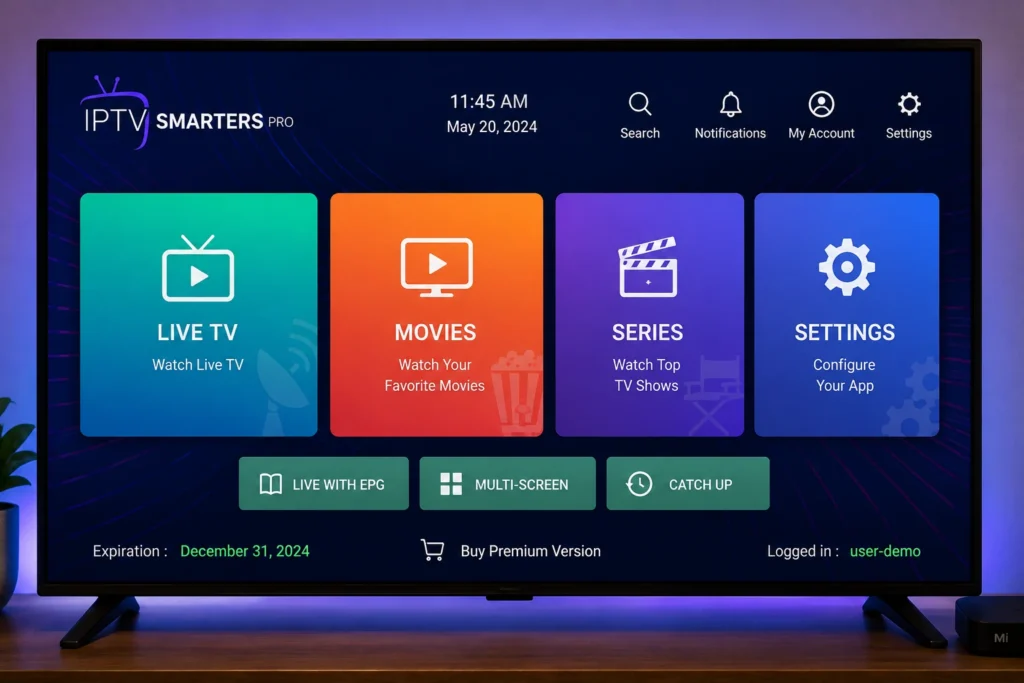
New to the app and not sure where anything is? This IPTV Smarters guide walks you through the interface, key settings, and features you’ll use most often, so you can get comfortable with the app in minutes instead of hours. It covers everything from initial setup and navigation to parental controls, playback settings, and troubleshooting common display issues.
IPTV Smarters Pro is a third-party media player app available on most major platforms. It doesn’t provide content itself — it displays content from whatever properly licensed IPTV service you’re subscribed to. This guide focuses entirely on the app’s interface and settings.
Table of Contents
What Is IPTV Smarters?
IPTV Smarters (and its more common version, IPTV Smarters Pro) is a media player application available on Android, iOS, Amazon Fire TV, Android TV, and several smart TV platforms. It provides a consistent interface for browsing live channels, an Electronic Program Guide (EPG), video-on-demand libraries, and playback controls, regardless of which licensed provider supplies your content.
Because it’s a player rather than a content source, everything you watch depends on your active, legitimate subscription — the app simply organizes and displays it.
Getting Started: Installation and Setup
1. Download From an Official App Store
Install IPTV Smarters Pro only from your device’s official app store (Google Play, the Apple App Store, or the Amazon Appstore) to avoid modified or unofficial versions that may carry security risks.
2. Confirm Your Device Meets Basic Requirements
The app runs on most modern smartphones, tablets, streaming boxes, and smart TVs. If you’re using an older device, check that it has enough processing power to decode HD or 4K playback smoothly.
3. Enter Your Subscription Details
When you first open the app, you’ll be prompted to enter the account information provided directly by your licensed IPTV provider. Follow the specific instructions your provider gives you at sign-up — these steps vary by service.
4. Wait for the Channel and Content List to Load
After entering your details, the app will sync your available live channels and VOD library. This can take anywhere from a few seconds to a couple of minutes, depending on your connection and library size.
Navigating the Interface
Once set up, the IPTV Smarters interface is organized into a few core sections:
- Live TV — browse and search live channels, often grouped by category or country
- EPG (Electronic Program Guide) — see what’s currently airing and what’s coming up next
- Movies / Series (VOD) — on-demand libraries, if your provider includes them
- Catch-Up — replay recently aired content, where supported by your provider
- Settings — playback, parental control, and display preferences
Understanding this layout is the single biggest time-saver in this entire IPTV Smarters guide, since most beginner confusion comes from not knowing where a feature lives.
Key Features to Set Up Early
Favorites List
Star or bookmark the channels you watch most so they’re accessible from a dedicated favorites tab instead of scrolling through a full channel list every time.
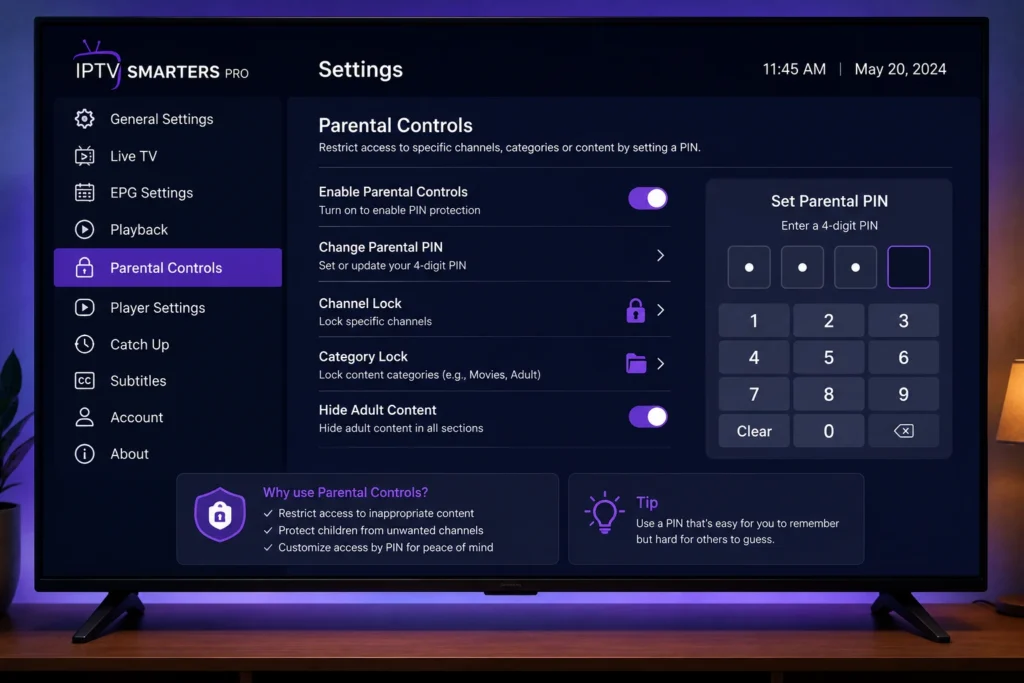
Parental Controls
IPTV Smarters includes a PIN-based parental control feature that can restrict access to specific channels or categories. This is worth setting up immediately in households with children.
- Open Settings
- Select Parental Control
- Create a PIN
- Choose which categories or channels to lock
Multi-Screen Mode
Some versions support a multi-screen layout, letting you view several channels at once — useful for sports fans tracking multiple games simultaneously.
EPG Time Format and Timezone
Make sure your EPG’s timezone and time format match your location so program schedules display accurately. This is set within the app’s general settings.
Playback and Display Settings
| Setting | What It Does | Recommended Starting Point |
|---|---|---|
| Video Buffer Size | Controls how much content pre-loads before playback | Default, unless buffering persists |
| Aspect Ratio | Adjusts how video fits your screen | Match your TV’s native resolution |
| Subtitle Settings | Enables/disables and styles subtitles | On, if available for your content |
| Player Type | Switches between built-in playback engines | Default, unless playback errors occur |
If you experience frequent interruptions after setup, most causes trace back to your network rather than the app itself
Troubleshooting Common Issues
- Channels won’t load: Confirm your subscription is active and your internet connection is stable using a tool like Speedtest by Ookla.
- App keeps freezing: Try increasing the buffer size in playback settings, or restart the app and your device.
- EPG shows no data: Some providers supply limited or delayed EPG data — this is provider-side, not an app issue.
- Video is pixelated or low resolution: Check your internet speed against the resolution you’re trying to watch; Netflix’s speed guidance offers a useful general benchmark.
- App won’t open after an update: Clear the app’s cache in your device settings, or reinstall from the official app store.
Best Practices for a Smooth Experience
- Keep the app updated through your official app store
- Use a wired Ethernet connection where possible for the most stable playback
- Set up parental controls before handing the device to children
- Restart your router weekly to prevent network-related slowdowns
- Only use the app with a properly licensed, legitimate subscription
Frequently Asked Questions
Is IPTV Smarters free?
The app itself is typically free to download, but it requires an active subscription from a licensed content provider to display any channels or on-demand content.
Does IPTV Smarters work on Amazon Fire Stick?
Yes, it’s compatible with Amazon Fire TV and Fire Stick devices, alongside Android, iOS, and several smart TV platforms.
Why does my IPTV Smarters app keep buffering?
Buffering is almost always related to your internet connection or network setup rather than the app itself.
Can I use IPTV Smarters on multiple devices?
This depends entirely on your provider’s subscription terms and simultaneous stream limits, not on the app.
How do I set up parental controls in IPTV Smarters?
Go to Settings, select Parental Control, create a PIN, and choose which channels or categories to restrict.
Does IPTV Smarters support catch-up TV?
Some channels support catch-up playback, but availability depends entirely on whether your provider supplies that data.
Why is my EPG not showing program information?
Missing or delayed EPG data is typically supplied by your provider, not generated by the app itself.
Is IPTV Smarters safe to use?
The app itself, downloaded from an official app store, is a standard media player. Safety and legality depend primarily on using a properly licensed IPTV subscription.
Final Thoughts
This IPTV Smarters guide covers the essentials: getting the app installed correctly, understanding the interface, setting up parental controls and favorites, and troubleshooting the most common playback issues. Once you’re familiar with where everything lives, day-to-day use becomes second nature — and most remaining issues typically trace back to your network rather than the app itself.